


















Last Updated: 2026-08-19
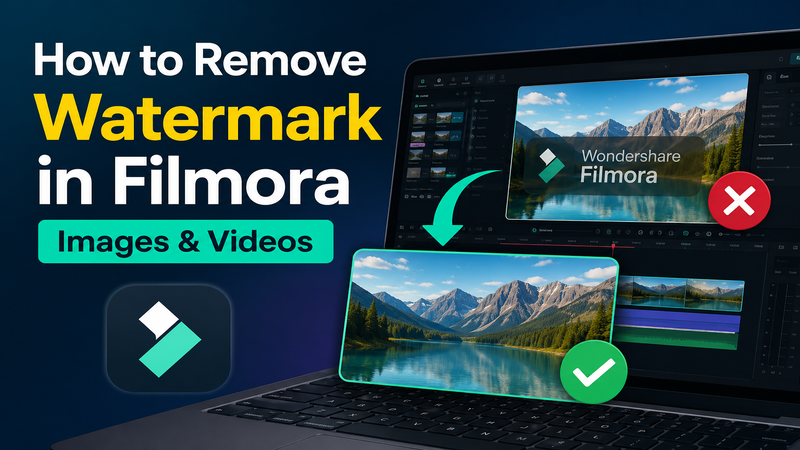
Filmora is one of the most popular video editors for beginners and professionals alike. It offers powerful editing tools, AI features, and thousands of creative effects. However, many users are surprised to see a large Filmora watermark after exporting a project using the free version. Others need to remove an existing Filmora watermark from videos or images they already have. Fortunately, there are several ways to solve this problem. This article explains 2 practical methods: using a Filmora watermark remover online and removing the export watermark by upgrading to a licensed version.
Disclaimer: Removing watermarks from copyrighted images or videos without the owner's permission may violate copyright laws. Only remove watermarks from content you own or have permission to edit.
Method 1: Remove Filmora Watermark Online - HitPaw Online Watermark Remover
If you have already exported a video and found a watermark is blocking an important part of your frame, you don't necessarily need to re-edit the whole project. Using a dedicated Filmora watermark remover online is often the fastest solution. One of the most reliable tools available is the HitPaw Online Watermark Remover.
HitPaw Online Watermark Remover uses advanced AI algorithms to detect and erase unwanted elements from your media. HitPaw attempts to reconstruct the pixels behind the watermark, resulting in a much cleaner, more professional look for your content. It serves as an excellent free online option for Filmora watermark removal for those who need a quick fix without downloading heavy software.
Key Features of HitPaw Online Watermark Remover
When looking for a Filmora watermark remover, HitPaw stands out due to its specialized toolset:
- Fast Online Processing: No need to install bulky applications. You can remove video watermark overlays directly from your Chrome, Safari, or Firefox browser in seconds.
- Remove Subtitles from Video: Beyond logos, this tool can detect and eliminate hardcoded subtitles or timestamps that might clutter your footage.
- Remove Without Blur: Standard removers often leave a "smudge" effect. HitPaw uses AI driven tech to fill the gap with matching textures. It allows you to remove watermarks or logos with high fidelity.
- Secure & Privacy Focused: Your uploaded files are protected by high level encryption. This tool automatically deletes files from servers after processing to protect your privacy.
- Multiple Removal Modes: Choose from AI, Matte Filling, Color Filling, Smooth Filling, or Blur Mode for different background removal types.
- Supports Videos and Photos: It works seamlessly to remove photo watermarks from thumbnails or promotional images and remove video watermarks from MP4, MKV, or MOV files and
How to Remove Filmora Watermark with HitPaw
Following these three simple steps will help you clean up your footage efficiently:
Step 1: Upload Your Media
Visit the HitPaw Online website and click the "Choose File" button. Select the Filmora video or image from your local storage that contains the watermark.

Step 2: Select the Watermark Area
Once the file is loaded, use the selection tool to highlight the Filmora logo. Choose the AI removal mode, highlight the Filmora watermark, and adjust the timeline if needed.
Step 3: Preview and Download
Preview the result to ensure the watermark has been removed cleanly. If you're satisfied, click "Export" to save the watermark free video.
Tip: For the best quality, use AI Mode or remove the watermark in smaller sections if the background is highly detailed.
Method 2: Upgrade Filmora and Export Without Watermark (Official)
If you are a professional creator, the most reliable and ethical way to remove the watermark is to purchase a license. This removes the watermark from the source and unlocks high bitrate exports, 4K resolution, and the full library of AI effects.
Why Upgrading? Upgrading isn't just about removing the logo. It is about workflow efficiency. When you have a license, you don't need to use an external Filmora watermark remover. You simply hit "Export," and the video is rendered perfectly. Furthermore, it supports developers who continue to update the software with 2026 AI features such as auto reframe and AI motion tracking. You are gaining access to:
- 1000+ AI Credits per Month: For AI text to video, AI image generation, and smart editing.
- Massive Asset Library: Access to over 15 million stock media files and 12,000+ filters.
- Cloud Storage: 10GB of space to sync your projects across devices.
Steps to Get Rid of Filmora Watermark via Upgrade:
- Click Purchase: Open Filmora and log in to your Wondershare account. Click "Purchase" in the upper right corner.
- Choose Your Plan: Wondershare offers several tiers, including Annual Plans, Cross Platform Plans, and Perpetual Licenses. Select the one that fits your workflow. The Perpetual License is often favored by those who want to pay once and own that specific version forever.
- Complete the Transaction: Fill in your payment details via the secure checkout.
- Refresh and Export: Once the payment is confirmed, go back to Filmora. Your account status will update automatically. The "Purchase" button will disappear, and you can now click "Export" to save your video in 4K or HD without any watermark.
FAQs on How to Remove Watermarks on Filmora
The most efficient way is to use an AI based browser tool. HitPaw Online Watermark Remover allows you to upload your video, select the Filmora logo area, and let the tool remove it automatically. This is a fast way to remove the watermark without editing the whole video again.
Removing a watermark for personal use or to clean up your own creative work is generally acceptable. However, removing watermarks from someone else's copyrighted content and passing it off as your own violates intellectual property laws. Always make sure you have permission to edit the video.
Moving watermarks are tricky because they change position. Advanced tools like HitPaw Online allow you to create multiple selection boxes or "track" the watermark across different timestamps. This ensures it stays hidden even as it bounces across the screen.
Conclusion
Removing the Filmora watermark can help make your videos look more professional. You can use a tool like HitPaw for a quick and easy solution or upgrade to the full version of Filmora for permanent watermark free exports and access to premium editing features. Choose the method that best fits your needs and budget. If you already have a video with a watermark, try the HitPaw Online Watermark Remover to restore a cleaner, more professional look. Happy editing!
- Remove watermarks from videos effortlessly
- AI ensures smooth, natural-looking results
- No blur, no distortion
- Supports multiple formats, fully online


