















Last Updated: 2026-07-15
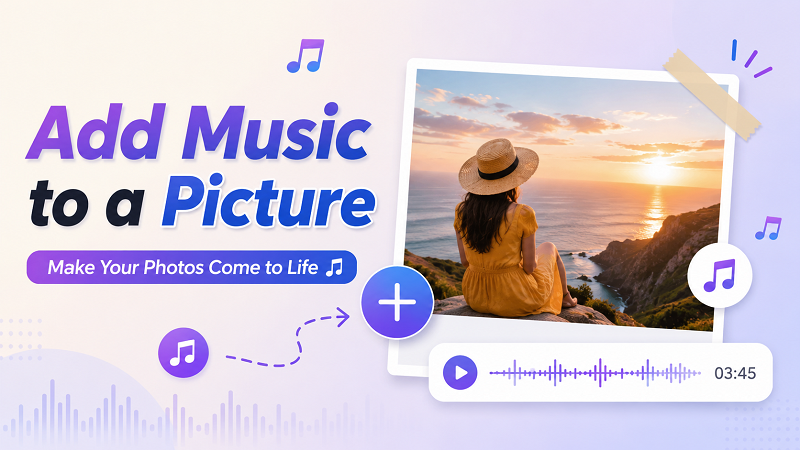
Adding music to photos is one of the easiest ways to make memories more attractive. Simply combine the perfect song for simple photos to create short videos that people can enjoy on SNS and share with family and friends. You can add music to your image files in just a few minutes, no matter what your purpose is - birthday slideshows, travel memories, business posts or personal stories. This guide shows you how to add music to your photos using mobile apps and online tools. It also explains what to prepare before you start work and how to create royalty-free music for your project using AI.
Why Add Music to Photos
Music brings life to still images. By combining music and a photo file together, you will be able to engage the emotion and attract the viewer's attention. Many individuals incorporate songs in their photo slideshows such as birthdays, wedding photos, travel videos, and family photos. Even businesses include music to make their social media posts about products more attractive. Whether you're adding music to your photos using the app, or adding music to your images online, the right BGM can help you attract viewers' interest and keep content in your memory.
What to Prepare Before Adding Music to Images
Before adding music to your image project, take a few minutes to prepare the file. Pre-preparation saves time and leads to better results.
1. Prepare Your Images
Select a clear picture with high resolution and quality lighting.JPG and PNG can be considered because they do not present any issues while using them in editing software. In case you want to post your video on Instagram, TikTok, or YouTube Shorts, make sure to crop your pictures to the correct size before adding the music.
2. Choose the Suitable Music
Selection of appropriate music is just as important as selection of appropriate images. Popular songs tend to be copyrighted and the usage of such songs without permission may result in muting or removing the content from social media sites. Instead, a much better approach would be to use the online music generator like HitPaw Online Music Generator. This will allow you to generate your own royalty free music which can be easily incorporated into your photo project.
Key Features of HitPaw Online Music Generator
- Text to Music: Just describe the type of music you want and create a soundtrack that AI will match in seconds. You can enter prompts such as "Happy Birthday Song," "Calm Travel BGM," and "Romantic Piano Melody."
- Diverse Music Styles: HitPaw offers many styles of music such as pop, piano, cinematic, rock, jazz, electronic, hip-hop, country, and relaxing BGM.
- Multiple AI Music Models: The platform supports advanced AI music models such as Google-Lyria and ElevenLabs Music v1.
- AI Lyrics Generator: If you need music with vocals, the AI Lyrics Generator creates lyrics based on the topic. You can write about all kinds of themes such as birthdays, travel, romance, pets, business, etc.
- Royalty-Free Music: All tracks created are royalty-free, so you can use them safely on YouTube, TikTok, Instagram, Facebook and other social media platforms.
How to Add Music to a Picture (Mobile Solution)
There are lots of methods by which we can add music to our images; however, the easiest of these are through mobile applications and web-based applications. It is convenient to use mobile apps when we need to make a fast post on social media, and web applications can be used when we wish to edit our image without downloading any software. The following is one such method.
Method 1: Add Songs to Photos Using CapCut
CapCut is one of the most popular apps to add music to pictures. It works on Android and iPhone and lets you create videos from photos with music, effects, and text.
Step 1. Open CapCut and Add Your Picture
Download and open CapCut on your phone. Tap New Project, then select the photo you want to edit.

Step 2. Add Music
Tap Audio at the bottom of the screen and choose Sounds. Select music from CapCut's library or import your own audio file. This is one of the easiest ways to add songs to photo projects while keeping full control over the background music.
Step 3. Export the Video
Tap Export, choose your preferred resolution, and save the video to your phone. You can now upload it to TikTok, Instagram, Facebook, YouTube, or send it to friends.
Method 2: Add Music to Images Online Using Canva
If you do not want to install an app, Canva offers a simple way to add music to images online. It works in any web browser and supports both free and paid users.
Step 1. Upload Your Picture
Click Uploads and upload the image you want to edit. Drag it onto the Canva canvas.
Step 2. Add Background Music
Open the Audio section and choose a music track from Canva's library. You can also upload music that you created with HitPaw Online Music Generator. Many users prefer this method when they want to add music to picture projects directly from a web browser.
Step 3. Adjust the Audio
Trim the song if needed and adjust the volume so it matches your project. Make sure the music length matches the photo display time. This simple step makes how to add music to a picture much easier for beginners.
Step 4. Download Your Project
Click Share, then Download. Save the file as an MP4 video so your picture and music stay together.
Tips for Adding Sound to Pictures
- Choose music that matches the atmosphere of the photo.
- Use high quality images for a better finish.
- Adjust the balance so that the volume of music is not too large.
- Cut long songs to make your videos short and interesting.
- Use royalty-free music to avoid copyright issues.
- Before exporting, preview the project.
- Save your project in high resolution to keep image quality high.
- If you want to add music to your image files frequently, prepare a royalty-free music collection for future projects.
FAQs on Adding Music to Image
If you want to know how to add music to photos on your iPhone, you can use apps such as "CapCut," "iMovie," "Canva," and "InShot." Import photos, add music tracks, adjust timing and export videos. If you want to avoid copyright issues, create your own soundtrack with HitPaw Online Music Generator before editing.
Some of the best apps to add music to pictures include CapCut, Canva, InShot, iMovie, Adobe Express, and VN Video Editor. These apps let you add photos, music, text, and simple effects without advanced editing skills.
Yes. Most editing apps allow you to add more than one music track. You can place different songs on the timeline, trim them, and arrange them in any order. This gives you more control when you add music to picture projects.
Yes, but only if you have permission to use the music. Using copyrighted songs without permission may cause your post to be muted or removed. The safest option is to create royalty-free music with HitPaw Online Music Generator before you add music to image projects.
Conclusion
Learning how to add music to a picture is simple when you use the right tools. Mobile apps like CapCut make editing easy on your phone, while Canva gives you a quick online solution. Before you start, prepare high-quality images and choose music that matches your project. To avoid copyright issues, create original royalty-free music with HitPaw Online Music Generator. Try it today and create photo videos with music that you can safely share on any social media platform.
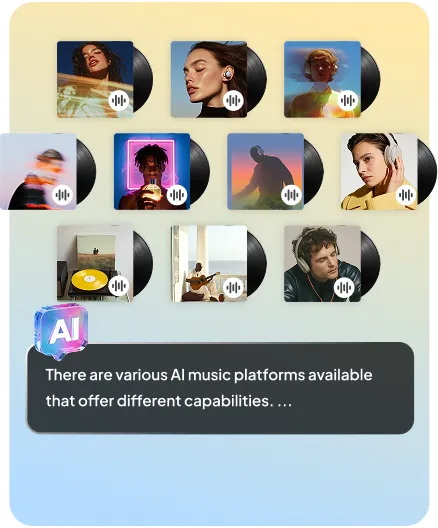
- Generate music and sound from text
- Multiple styles (pop, EDM, ambient, etc.)
- Auto-create melody and rhythm
- Ideal for videos, content, and projects


