












Last Updated: 2026-07-15
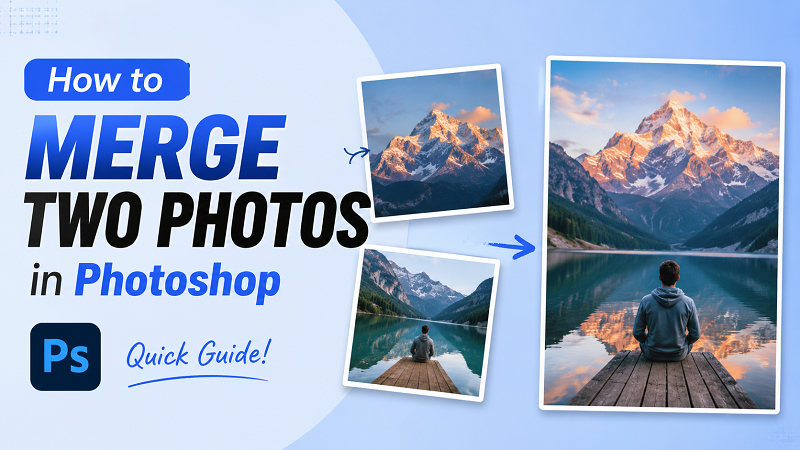
The technique of combining two photographs in Photoshop can be handy for beginners and professionals alike. With just a few tools, you can combine family photos, create posts for SNS, design banners and create creative artworks. The Adobe Photoshop software allows you to manipulate layers, masks and blend modes at will, allowing you to edit smooth photos. In addition, users want to know how to merge two photos in Photoshop, how to merge two images in Photoshop and how to mix images in Photoshop. After all, we are looking for procedures that are simple to follow and comprehend. This guide provides all steps in an easy-to-understand fashion. Also, we will be adopting an easier-to-use AI tool, where you can create images in minutes with just a few clicks and don't have to be an expert editor.
When Do You Need to Merge Two Photos?
Merging two photos in Photoshop helps you create professional and creative visuals for both personal and business use. You can design social media posts, marketing banners, flyers, and promotional graphics, replace or change backgrounds, create before-and-after comparisons, or produce digital artwork such as posters and book covers. By combining portraits, products, textures, and backgrounds into one image, you can create polished designs that look natural and are suitable for websites, presentations, advertisements, and social media.
How to Merge Two Photos in Photoshop
If you want to know how to synthesize two photos in Photoshop, follow the simple steps below.
Step 1: Upload Both Photos
Launch Photoshop and open your first image. Then go to File > Place Embedded (or drag and drop) to add the second photo into the same document.

Step 2: Resize the Second Image
Press Ctrl/Cmd + T to resize, rotate, and position the second photo. Arrange both layers in the Layers panel as needed.
Step 3: Add a Layer Mask
Select the top image layer. Click the Add Layer Mask button at the bottom of the Layers panel. A white mask thumbnail will appear beside your image. Many users learning how to connect two photos in Photoshop use this method because it gives clean and natural results.
Step 4: Blend the Photos
Choose the Brush Tool (B) with a soft brush. Paint on the layer mask using black to reveal the lower image and create a smooth transition. Adjust brush opacity for a more natural blend.
Step 5: Match Colors and Lighting
Use Image > Adjustments to fine-tune Brightness/Contrast, Curves, Levels, Color Balance, or Hue/Saturation so both photos look consistent.
Step 6: Save Your Work
Crop the final composition if needed, then save your project as a PSD for future editing or export it as a JPG or PNG for sharing.
Tips for Better Results
- Use high qualty photos.
- Keep the brightness of both images as close as possible.
- Use a soft brush to blend smoothly.
- Enlarge and clean the coarse edges.
- Please do not rush the mask work.
- Before exporting, save the Photoshop file.
- Try different blend modes to find the best looks.
- Try different layer positions until both photos fit naturally.
Using these tips, you can learn more easily how to combine two photos in Photoshop, how to combine two photos into one, how to add another image, and how to blend images into a clean, professional finish.
Easier Method to Mix Two Images Use HitPaw AI Image Combiner
Adobe Photoshop gives you complete control over editing, but it takes time to learn how to use it. If you are new to photo editing, you may find it difficult to use layers, masks, and adjustment tools. Many users simply want to combine two images without having to spend hours learning Photoshop. If you are looking for a faster solution, HitPaw AI Image Combiner is the best choice. This tool leverages AI and combines two images with just a few clicks. Create creative images directly from your web browser without the need for advanced editing skills.
Why Choose HitPaw AI Image Combiner?
AI Character Blending: It allows you to combine two character images into one creative design. You can combine people, anime characters, pets, fantasy art and more with just a few clicks.
Smart Product Composition: It creates clean product images without requiring advanced editing knowledge.
Social Photo Creation: Create eye-catching images for Instagram, Facebook, TikTok, YouTube thumbnails, and other social media platforms.
Without Installation: Unlike Photoshop, HitPaw AI Image Combiner works online. You do not need to install large software or worry about computer performance.
How to Combine Two Photos with HitPaw AI Image Combiner
Using HitPaw AI Image Combiner is very simple.
Step 1: Open HitPaw AI Image Combiner
Visit the HitPaw AI Image Combiner website.
Step 2: Upload Photos and Enter a Prompt
Upload the two images you want to combine, then describe how you'd like them merged.
Step 3: Preview and Download
Check the final result. If you are happy with the image, click the download button and save it to your computer. You can now use your combined image for social media, presentations, websites, or personal projects.
Photoshop vs AI Image Combiner: Which Method Should You Choose?
| Feature | Photoshop | HitPaw AI Image Combiner |
|---|---|---|
| Ease of Use | Medium to Hard | Very Easy |
| Editing Control | Full Manual Control | Automatic AI |
| Time Required | 10-30 Minutes | Around 1 Minute |
| Layer Editing | Yes | No |
| Best For | Professional Editing | Quick Photo Combining |
If you want complete control over every detail, Photoshop is still one of the best editing tools. It works well for designers, photographers, and experienced users. If you simply want to combine two photos quickly, HitPaw AI Image Combiner is a better option. It saves time and does not require editing experience.
FAQs on How to Blend Image in Photoshop
Photoshop does not have a single merge tool for combining photos. Instead, you use layers, layer masks, the Brush Tool, and blending options. These tools help you control how two images blend together. This is the most common method for how to merge two photos in Photoshop.
The best method is to use high-resolution images and keep your original files during editing. If you use Photoshop, save your project as a PSD file before exporting a JPG or PNG. If you prefer a faster option, HitPaw AI Image Combiner also keeps good image quality while combining photos.
Yes. AI tools make photo combining much easier. HitPaw AI Image Combiner can combine two photos in just a few clicks without requiring advanced editing skills. It is a good choice for beginners who do not want to learn how to combine two images in Photoshop or how to merge two photos together in Photoshop.
Conclusion
Learning how to merge two photos in Photoshop helps you create social media graphics, marketing designs, creative artwork, and many other types of images. Photoshop gives you detailed editing control through layers, masks, and adjustment tools, but it takes practice to master. If you want a faster and simpler solution, HitPaw AI Image Combiner lets you combine two images in only a few steps without installing software. Try HitPaw AI Image Combiner today and create high-quality merged photos quickly and easily.
- Text-to-image and image-to-image creation
- Supports diverse styles and AI models
- High-resolution output with rich details
- Fast generation for social and marketing use


