
















Synthesia AI Video Prompt Guide: Writing Better Prompts
Video content is the undisputed king of digital engagement, but traditional production is costly and slow. Enter the Synthesia AI video generation tool, a platform transforming text into professional presentations using hyper-realistic avatars. However, the quality of your output depends entirely on your input.
This Synthesia AI video prompt guide is designed to take you from basic scripts to cinematic masterpieces. You will learn how to write prompts for Synthesia effectively, master non-verbal cues, optimize your workflow, and discover powerful alternatives to streamline your video creation process.
Part 1. Synthesia AI Video Prompt Basics
Before diving into complex scripting, it is essential to understand the mechanics of AI avatar video generation. Unlike standard text-to-video tools that create random scenes, Synthesia focuses on a digital presenter delivering a specific message.
1.1 What is a Synthesia AI Prompt?
In the context of Synthesia, a "prompt" is a dual-layered instruction. First, it is the script (what the avatar says). Second, and increasingly important with new AI features, it is the visual instruction (how the scene looks, how the avatar acts, and what the background depicts).
A Synthesia AI prompt acts as the director's command. It tells the AI engine not just the verbal content, but also dictates the Synthesia text to video conversion process regarding tone, pacing, and visual context. In video planning, the prompt determines:
- Content: The actual information delivered.
- Actions: Specific gestures like nodding or pointing.
- Scenes: The background environment (office, studio, outdoor).
- Style: The framing (circular view, full body, voice-only).
1.2 Components of a High-Quality Synthesia Prompt
To move beyond robotic outputs, your prompts must contain four distinct components. Missing one often leads to generic results.
- Subject (The Avatar): This involves selecting the right avatar "persona." Is it a casual creative, a corporate executive, or a medical professional?
- Action (The Gestures): Key movements that emphasize points. Synthesia allows for specific markers (like nods or hand raises) to be embedded in the script.
- Setting / Environment: The visual stage. This can be a stock image, a solid color, or an AI-generated background created via prompt descriptions.
- Style / Cinematic Details: Camera angles (close-up vs. wide), artistic style, or the emotional mood of the delivery.
Sample Formula: To ensure consistency, use this formula when planning your video:
[Avatar Persona] + [Key Action/Gesture] + [Environment Description] + [Emotional Tone]
Template Example:
"A professional female avatar [Subject] stands in a modern, sunlit glass office [Environment]. She speaks with an enthusiastic and welcoming tone [Style], nodding occasionally to emphasize benefits [Action]."

Part 2. How to Write Effective Synthesia AI Video Prompts (Step-by-Step)
Writing the perfect prompt is an iterative process. Whether you are creating corporate AI video scripts or social media clips, follow these steps to ensure high-quality output.
2.1 Define the Prompt Theme
The most common mistake beginners make is trying to do too much in one video.
- Determine the Video Goal: Is this an HR onboarding video, a quick sales pitch, or an educational tutorial? The goal dictates the avatar's attire and the background complexity.
- Plan the Main Subject: Choose an avatar that aligns with your demographic. For a Gen Z marketing clip, choose a casual avatar in a hoodie; for a legal update, choose an avatar in a suit.
- Focus the Theme: Avoid "kitchen-sinking." If the video is about "Product Features," do not drift into "Company History." Keep the prompt focused on one core message to maintain viewer retention.
2.2 Add Detailed Descriptions
Synthesia's AI Assistant (based on ChatGPT technology) can help generate video scripts and scene ideas if you provide detailed context.
- Visual Details: When describing the background for the AI to generate, be specific. Instead of "office," use "minimalist Scandinavian office with soft morning lighting and blue brand accents."
- Camera and Style: Specify if you want the avatar to be "Center Stage" or "Bottom Right" (typical for screen recordings).
- Avoid Ambiguity: Vague phrases like "make it cool" are useless to AI. Use concrete adjectives like "energetic," "urgent," or "empathetic."
- Sentence Structure: For the spoken script, use short, punchy sentences. AI avatars breathe better and sound more natural when the script has clear punctuation.
Part 3. Advanced Synthesia Prompt Tips
Once you have mastered the basics, use these advanced strategies to elevate your Synthesia AI prompts to a professional level.
Use Natural Language Instead of Keyword Stacking
Early SEO tactics don't work for AI video. Don't write: "Best software, cheap price, buy now."
Instead, write conversational dialogue: "Are you looking for the best software at an affordable price? Let's explore why you should buy now." The AI voice engines are trained on natural speech patterns; feeding them keywords results in a stilted, robotic delivery.
Incorporate Cinematic & Photography Terms
When using Synthesia's "Generate Video with AI" feature to create backgrounds or scenes, use photography terminology.
- Depth of Field: Request a "blurred background" or "bokeh effect" to keep the focus on the avatar.
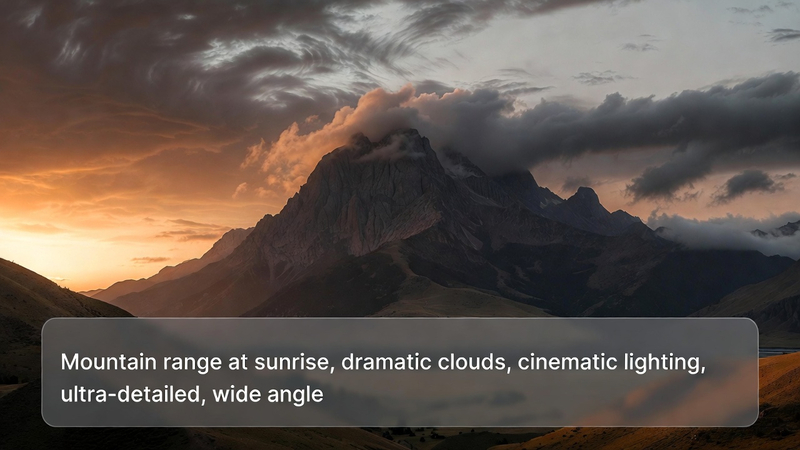
- Lighting: Use terms like "cinematic lighting," "rembrandt lighting," or "softbox lighting" to ensure the generated background matches the high quality of the avatar.
Optimize Prompt Length
For the script, the "sweet spot" for a single slide is usually 30-50 words. If a prompt is too long, the avatar remains static for too long, causing viewer fatigue. Break long prompts into multiple slides or scenes to introduce visual variety.
Iterative Prompt Refinement
Rarely is the first draft perfect. Use the "Preview" function relentlessly.
- Check Pronunciation: If the AI mispronounces a brand name, use phonetic spelling in the prompt (e.g., write "Hit-Paw" instead of "HitPaw").
- Adjust Pauses: Use punctuation marks like commas and periods to force the AI to pause and breathe. You can also use specific SSML tags or the <break time="0.5s" /> command if supported, or simply add ... for dramatic effect.
Use Prompt Templates & Reusable Frameworks
Create a "Brand Voice Guide" for your prompts. If your brand is witty and fast, save a template that includes instructions for "fast-paced delivery" and "bright, colorful backgrounds." This ensures that different team members generate consistent videos.
Part 4. Bonus Tip: Best Synthesia Alternative to Create AI Video with Prompt
While Synthesia is a powerful tool, it can be expensive and sometimes complex for users who just want a quick, fun, or artistic video without managing a full avatar subscription. In such cases, the HitPaw Online AI Video Generator serves as an excellent alternative.
Recommend HitPaw Online AI Video Generator
HitPaw offers a streamlined, browser-based solution that brings your imagination to life. Unlike Synthesia, which focuses primarily on talking avatars, HitPaw excels in creative Text-to-Video and Image-to-Video generation. It creates dynamic scenes, animations, and artistic clips that are perfect for social media b-roll, creative storytelling, or enhancing your marketing materials.
4.1 Key Features
- Text-to-Video & Image-to-Video: Transform a simple text description into a fluid video or animate a static image instantly.
- Customizable Output: Offers multiple aspect ratios (1:1, 16:9, 9:16) suitable for TikTok, YouTube, or Instagram.
- No Installation Needed: Fully browser-based, allowing you to generate videos on any device.
- Style Variety: Choose from realistic, anime, 3D render, or cyberpunk styles to match your creative vision.
4.2 Simple Usage Steps to Create an AI Video with HitPaw Online
Creating a video with HitPaw is incredibly fast. Here is how to do it:
- Step 1: Navigate to the HitPaw Online AI Video Generator and select your preferred creation mode.
- Step 2: Type your detailed text prompt or upload a reference image for generation.
- Step 3: Click Generate, wait for processing, preview the video, and download it.
4.3 When to Use it as a Synthesia Alternative
- Creative B-Roll: When you need footage of a "flying car" or "cyberpunk city" to insert into your Synthesia video (as an overlay).
- Quick Social Clips: When you need a 10-second catchy visual for TikTok that doesn't require a talking head.
- Cost-Efficiency: When you have exhausted your credit limit on enterprise tools but need to generate visual assets immediately.
- Artistic Expression: When the goal is visual storytelling rather than corporate presentation.
Conclusion
Writing structuredSynthesia AI video prompts is the key to unlocking the full potential of AI video generation. By moving beyond basic text and incorporating detailed instructions for persona, environment, and action, you can transform robotic clips into engaging, human-like content. Remember to combine structure, detail, and iterative testing for the best results.
However, the AI video landscape is vast. When you need creative flexibility or quick artistic assets to complement your avatars, tools like the HitPaw Online AI Video Generator provide a powerful, accessible alternative to ensure your video marketing strategy remains versatile and visually stunning.
Generate Now!


Home > Learn > Synthesia AI Video Prompt Guide: Writing Better Prompts
Select the product rating:
Natalie Carter
Editor-in-Chief
My goal is to make technology feel less intimidating and more empowering. I believe digital creativity should be accessible to everyone, and I'm passionate about turning complex tools into clear, actionable guidance.
View all ArticlesLeave a Comment
Create your review for HitPaw articles