
















7 Tips on How to Write Effective Prompts for Sora AI Video Generation
Sora 1 and the latest Sora 2 both offer you the ability to generate short videos from text prompts. You can also set different video settings, and there are many unique features as well. However, one common complaint is the interpretation of the text prompts by Sora, and that's mostly because they are lacking something that is needed by the tool to give you the output you need.
Below, you'll explore 7 tips on how to write effective text prompts for Sora AI video generation, and the tool's performance based on different use cases.
Create Now!Part 1. How to Write Effective Prompts for Sora AI Video Generation
Generating shot clips from your text prompts is an art, and here are 7 tips to write them effectively for Sora AI video generation.
1. Get Inspiration from Featured Videos
To create prompts that give you exactly what you want from Sora, the best place to start is the featured videos. You can access them by clicking the Videos tab in the left sidebar.

Remember the saying, good artists copy, great artists steal? You can do just that with a bit of creativity. When you find a video you like and want to create one like that, click on it to view the complete prompt used to create it. Not only that, but you'll also see all the settings associated with it, not just the text itself, but also the aspect ratio, quality, length, and other options.
Now, you have an effective prompt for the video. There are two things you can do here.
The first one is to ask ChatGPT to use the same prompt and adapt it to your vision. This way, ChatGPT will use all the camera angles from Sora's video prompt but create a new scene for you.
The other thing you can do, if you know all the videography terms, is to click Edit Prompt, then make a few changes based on the scene you want to create, and Sora will create a new video for you based on that.
If you don't want to change anything yet, you can save that specific video by clicking the heart icon in the top right corner. This adds the video to your liked videos.
You can access your liked videos by clicking the OpenAI logo in the top left corner and then selecting the Likes button in the left sidebar. This section is useful for saving videos from other creators that inspire you.
Now that you have some inspiration, it's time to go over a few quick tips and tricks for writing your own prompts.
2. Keep It Simple
If you don't want to use inspirations and want to start from scratch, the next tip is to keep it simple. Remember, Sora is not a movie creator. It is a clip creator.
When you ask Sora to create a dog surfing the waves in Hawaii, getting caught in a 60-foot swell, hanging on the edge of the board, and then riding to the top of the wave before coming into shore, the result will not work very well.
In general, the more you ask for, the less you get. You'll notice that there won't be a 60-foot swell, no tricks, and no shoreline. Who knows? The dog may end up with two tails. That said, the dog will still be surfing, which is the main goal of the prompt.
So, try not to overwhelm Sora AI with so many situations in a scene. If you want to do that, Sora Storyboard is the best place. In it, you can create videos of each scene separately, and they'll be played as one.
As in the above example, you can create multiple videos of the same dog surfing in Hawaii, and in each of them, you can describe every scene, like the 60-foot waves, hanging on the edge of the board, and riding the top of the wave, in a bit of detail, for a good output.
3. Use CAST for Best Results
The next tip is to avoid complex object interactions. You might not think that someone eating a plate of pasta is very difficult for Sora to generate, but issues can appear quickly. In one example, you may see a fork head dangling in the pasta, and in another, one of the fork heads might appear to be melting.
If you keep these two tips in mind, there is a simple formula you can use to get better results for Sora AI video generation. You can remember this formula using the acronym CAST.
- C stands for character. Who or what are the characters in the shot?
- A stands for action. What are those characters doing?
- S stands for setting. Where are the characters located?
- T stands for time. What time of day or time period is shown?
So, try to write your prompts in that order, and you can feed ChatGPT that information, too, to do this work for you.
You can also ask ChatGPT for prompt ideas. An example prompt inspired by a ChatGPT response produced good results because it stayed simple.
4. Address the How Part
Using the CAST structure describes the what of the scene, but not the how. To adjust that, open the prompt of your favorite video or the one you created that's not so great. Then, click Edit Prompt. This time, click the Preset icon.
The easiest way to understand every preset is to see how it is defined. You can do this by clicking on Manage. Each preset here describes several characteristics of the final footage, such as color grading, camera style, film stock, lighting, vibe, and more.
To see how this works, return to the same prompt and use a preset like Film Noir this time.
Then, click the arrow to submit the prompt and return to the main queue. Now, you'll see all the characters in the early 19's footage, with the same other elements restored. However, you may notice that there are some changes in the story and visual aspects compared to the previous generation using the same prompt.
You can experiment with different presets here, and they add text in your prompts automatically for the detail you are looking for. But if presets are not working, you need to know about some terms a videographer knows about.
5. Understand Camera Angle Terms
The camera and shot elements are very important when you want to learn how to write effective prompts for Sora AI video generation. These are wordings and ways of describing different parts of a video that typically someone who is not in the cinematic industry, such as you, wouldn't be as aware of or as well-versed in.
Just to give an off-topic analogy to help bridge the gap here, imagine you are talking about liking cheese. If you're not a cheese connoisseur, you only have so many words that you're familiar with to describe cheese. It can taste really good, it can taste bad, it can smell good, or it can smell bad.
Beyond that, you don't have that many words to describe what you're tasting. Someone who is a true cheese connoisseur might say this tastes very herbaceous, or it has nutty tones or undertones, using more specific words to describe flavors you might not have the vocabulary for.
The same concept applies to text-to-video generation in Sora. A lot of these words that you may not be well-versed in are very impactful to the end result.
You have different shot types, such as close-up shots, medium shots, and wide-angle shots, and many more, that you may not have any idea about.
One common example seen a lot on Sora is drone shots or point-of-view shots, where the camera is flying over the top of an actual scene.
These are words that might not come to mind if you're not familiar with them, but knowing that they exist and learning about them is very helpful. You can include these terms in your prompts to explain the scenes much better, to give Sora its best shot at generating videos.
6. Integrate Video Quality, Lighting, and Atmosphere Settings
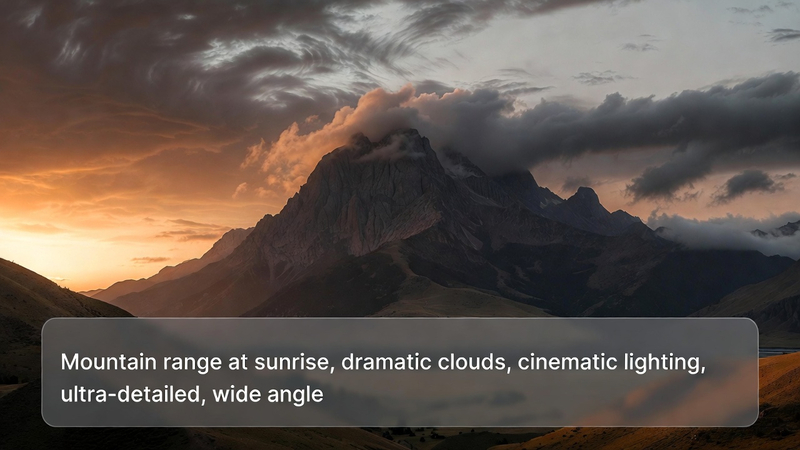
In video quality, the most common technical terms are cinematic, ultra-detailed, and hyperrealistic. Hyperrealistic shows up a lot in text-to-video, especially with close-ups of things like animals, where you can see individual whiskers and pupils. Using the word hyperrealistic helps give the prompt the clue that you want it to be as real-life as possible.
When it comes to lighting and atmosphere, talking about the type of lighting makes a difference, even if you don't naturally have the words for it.
For example, saying natural lighting, studio lighting, soft lighting, or hard lighting helps guide the result.
One option that might surprise you is golden hour, which is the hour before sunset with a very unique type of lighting. All of these can make a difference in how your end result actually turns out, and there are more things you can integrate as well.
7. Trying Again and Video Categories
Not but not the least. Don't be afraid to try again and again. Even if you follow all the tips to write effective prompts for Sora AI video generation, you may need to edit and submit the same prompt over and over again until you get the clip you want.
Part 2. Sora AI Video Generation Prompt Performance in 6 Different Categories
In this part of the tutorial, six different types of videos are covered to see how well Sora generates each category, so you know what you are going to work with to come up with better prompts.
B-Roll Footage
Sora can produce B-roll from prompts that look realistic at first glance, especially in environments with minimal movement. In some cases, the down shots of scenes appear believable, but issues quickly emerge with details you would like to show in the scene below.
Scenes involving motion, such as vehicles or crowds, often reveal inconsistencies. Objects may overlap, fade into each other, or behave in physically incorrect ways, which reduces realism.
Sora performs better in B-roll scenarios with slower movement and fewer interactions. Simpler scenes can look convincing, even if finer details like text or interfaces are unclear or unreadable.
Because of these limitations, Sora delivers mixed results for B-roll use. While some outputs may be usable depending on context, you need to edit your prompts a few times.
Animations and Abstract Art
Sora performs well when it comes to animations and abstract visuals. Prompts such as particle simulations with fractal patterns tend to produce strong results.
This category also highlights the advantage of using terminology from art, printing, or cinematography. Concepts like linocut cut styles translate effectively and can influence the overall look in a meaningful way.
Here, looping is especially useful for illustrations and abstract visuals. By selecting a portion of a clip and applying the loop option, it is possible to create seamless repeating motion. At 720p, clips must remain under five seconds, which limits how much time Sora has to smooth out transitions.
Short loops can feel rushed, but longer loops often produce better visual flow. Despite these constraints, the results are visually appealing.
Data and Infographics
Data-driven dynamic visuals are one area where Sora struggles. Text-heavy prompts have long been difficult for video generation tools, and you are likely going to experience this issue here as well.
Infographic-style videos do not improve much on this. Important details such as numbers or labels are frequently incorrect, which makes these outputs unsuitable for serious data presentation.
Prompts for heads-up display style visuals perform slightly better because the focus remains on motion rather than readable text. However, once the scene becomes too complex, errors quickly become noticeable.
Because of these limitations, Sora is not a strong option for data visualization or infographics.
Celebrities and Public Figures
Using prompts to generate videos of celebrities or public figures does not work well in Sora. This limitation is expected and will become obvious to you. For example, if you write a prompt about Tom Hanks accepting an Oscar, you'll see vague lookalikes rather than accurate representations.
The results may resemble other familiar faces, but they do not reflect the intended individual.
Fantasy and Creative Concepts
Fantasy is one of the areas where Sora performs better, especially for creative experimentation. Combining different elements, such as animal features or imaginative designs, generally produces interesting results.
Visual artifacts can still appear, so it's important to watch for inconsistencies in your prompt. Running the same prompt multiple times can lead to variations, some of which may look more refined than others.
Prompts that are overly long or detailed tend to struggle within short video limits. When too many ideas are packed into a five-second clip, not all elements translate clearly.
Content for Kids
Last up is whether this is a fun tool for kids to use while prompting. In this category, you have to consider your prompts, along with how to upload your own characters.
First, it is possible to make fun animations of characters interacting with each other. Well, sort of interacting with each other. Once again, interacting with objects is a challenge for Sora.
Instead of writing another prompt, uploading a custom character is another option. Photos can be uploaded to jumpstart prompts by clicking the plus button in the prompt box and selecting Upload Image or Video.
Before uploading, you need to accept 4 conditions. These include not uploading people under the age of 18, not uploading explicit content, owning the rights to the media, and understanding that misuse of the feature could result in a ban. After clicking accept, uploading media containing people is still likely restricted.
Once the photo is uploaded, you can write a prompt, or Sora can animate the image on its own. When attempting to make characters dance, copyright checks can block results. Even characters that have entered the public domain, such as Popeye, may trigger these restrictions.
This situation applies to most characters kids are familiar with. As a result, the remaining options are limited to pictures of cats or cartoon-style memes. These can be fun occasionally, but they are not particularly strong options.
Part 3. FAQs of How to Write Effective Prompts for Sora AI Video Generation
Q1. How to write Sora video prompts?
A1. To write Sora video prompts, you should first check the featured videos and take inspiration from the prompts used in them, which you can edit, too. You should also keep things simple by using the CAST method and defining the "how" element. You also need to know the terms for camera angles, video quality, lighting choices, and atmosphere. It's always good to do small tweaks without overthinking or stuffing too many details in.
Q2. How to make Sora prompts better?
A2. Sora prompts get better when the wording gives the model something clear to show on screen. Vague words like "nice" or "cozy" don't translate into visuals, but specific details do. Describing clear actions, like pouring coffee or lighting a candle, helps shape the scene. The more visual and concrete the language is in your prompts, the easier it is for Sora to turn it into a believable clip.
Q3. How to get the best results on Sora?
A3. Getting the best results on Sora really comes down to how you build things step by step. Start with a simple prompt to give you a solid base, and then small refinements help you understand what actually changes the output. Instead of cramming everything into one prompt, generating multiple versions shows differences faster. Also, you should match the prompt detail to the clip length. When quality is the goal, subscribe to the Sora Pro plan for 1080p video generation.
Conclusion on How to Write Effective Prompts for Sora AI Video Generation
In this guide, you've learned about how to write effective prompts for Sora AI video generation. Once you understand how prompts shape motion, detail, and mood, experimentation becomes easier and more intentional. With practice, small adjustments can produce predictable improvements. That confidence is what turns random outputs into clips that are purposeful and controlled.





Home > Learn > 7 Tips on How to Write Effective Prompts for Sora AI Video Generation
Select the product rating:
Natalie Carter
Editor-in-Chief
My goal is to make technology feel less intimidating and more empowering. I believe digital creativity should be accessible to everyone, and I'm passionate about turning complex tools into clear, actionable guidance.
View all ArticlesLeave a Comment
Create your review for HitPaw articles