














Last Updated: 2026-07-06
I used to think writing AI video prompts was just about adding more details-more adjectives, more styles, more keywords. But the results often felt random: awkward motion, inconsistent subjects, or scenes that didn't match what I had in mind. If you've ever struggled with prompts that look "right" but generate disappointing videos, you're not alone.
With the release of Seedance 2.5, things started to change. The model is more powerful-but also more sensitive to how prompts are structured. That's exactly why I put together this seedance 2.5 prompts guide: to help you write clearer, more effective prompts for both text-to-video and image-to-video generation.
Part 1: What Is Seedance 2.5 and Why Prompting Matters
When I first tried Seedance 2.5, the difference was obvious. The videos felt more dynamic-stronger motion, smoother transitions, and camera movements that actually looked cinematic instead of artificial. It's clearly built for short-form video, where pacing and visual storytelling matter. But I also realized something quickly: better models don't fix bad prompts.
In fact, with Seedance 2.5, prompting matters even more. What finally clicked for me is this-prompts aren't just keywords anymore. They're closer to a shot brief, like something a director would give before filming. The clearer your "camera plan," the better your results.
Part 2: How to Write a Seedance 2.5 Prompt (Core Structure)
After testing dozens of prompts in Seedance 2.5, I found that consistency comes from structure-not creativity alone. Instead of writing prompts as loose descriptions, it helps to follow a clear formula:
- Subject - who or what is in the scene
- Action - what is happening
- Camera Movement - how the camera behaves (e.g., push-in, pan)
- Environment - where the scene takes place
- Lighting - mood and time of day
- Style - visual direction (cinematic, realistic, anime, etc.)
- Framing - shot type (close-up, wide shot, 9:16, etc.)
Here's a simple comparison:
 Weak prompt:
"A beautiful girl in a city, cinematic, high quality"
Strong prompt:
"A young woman walking through a neon-lit Tokyo street at night, slight wind in her hair, slow camera push-in, shallow depth of field, cinematic lighting, 50mm close-up"
The difference isn't just detail-it's clarity. A structured prompt guides the model like a shot brief, telling it exactly what to render and how to render it. In practice, this approach is far more effective than stacking adjectives or vague keywords.
Part 3: How to Write Seedance 2.5 Text-to-Video Prompts
When to Use Text-to-Video
I usually turn to text-to-video when I don't have a reference image or when I'm still exploring ideas. It's especially useful for early-stage concept testing-things like mood, composition, or narrative direction. Instead of being constrained by an image, you're defining the entire scene from scratch, which gives you more creative control but also requires more precise prompting.
Best Prompt Patterns
Over time, I found that certain prompt patterns consistently produce better results:
1. Cinematic Scene Prompt
Great for travel or landscape visuals.
Prompt:
A wide shot of a mountain valley at sunrise, soft fog drifting, slow drone shot forward, warm golden light, cinematic tone
2. Product Video Prompt
Useful for ads or e-commerce.
Prompt:
A luxury watch rotating on a reflective surface, macro lens, slow orbit camera, studio lighting, high contrast, commercial style
3. Social Media Hook Prompt
Designed for short-form content (9:16).
Prompt:
A young woman turning toward the camera in surprise, fast zoom-in, bright lighting, high energy, vertical video
Recommended Settings
From my testing, keeping clips between 4-8 seconds gives the best balance between motion quality and stability. For format, I typically use 9:16 for social content and 16:9 for cinematic scenes. I also recommend testing prompts at lower resolution first, then scaling up for final output.
One key rule I always follow: one clip = one core action. The moment you try to describe multiple events, the model tends to lose coherence. Keeping it simple almost always leads to better results.
Part 4: How to Write Seedance 2.5 Image-to-Video Prompts
Key Principle: Animate, Don't Rewrite
When I first started using image-to-video, I made a common mistake-I kept describing what was already in the image. But that doesn't help. The model already "sees" the content. What it needs from the prompt is direction on motion.
So instead of repeating visual details, the focus should be on what moves and how it moves.
High-Converting Prompt Structure
A more effective structure looks like this:
- Preserve the subject (identity, outfit, pose)
- Add subtle motion (hair movement, blinking, environmental effects)
- Define camera movement (push-in, pan, orbit)
For example, instead of writing:
"A girl standing in a field with sunlight"
I would write:
"Keep subject identity, slight wind moving her hair, soft sunlight flickering, slow camera push-in, natural motion"
Useful Prompt Keywords
Some phrases I consistently use to improve stability:
- "keep subject identity"
- "preserve composition"
- "add subtle motion"
These help the model avoid unwanted changes while introducing controlled animation.
At a fundamental level, the workflow becomes very clear:
the image provides the static information, and the prompt defines the dynamic behavior.
Once I started thinking this way, my results became far more predictable and visually consistent.
Part 5: Advanced Prompt Techniques for Seedance 2.5
Camera Movement Keywords That Actually Work
One thing I underestimated at first was how much camera language affects the final output. Seedance 2.5 responds extremely well to clear, physical camera instructions. Instead of vague terms like "cinematic," I now rely on specific movements such as:
- slow push-in - adds focus and emotional build
- tracking shot - follows subject movement smoothly
- orbit - creates dynamic, high-end visuals
- macro - emphasizes detail (great for product shots)
- drone shot - ideal for landscapes and scale
These keywords don't just enhance quality-they guide motion consistency.
Multi-Reference Prompting
When working with multiple inputs, I like to assign clear roles:
- Image 1 = subject (who/what)
- Image 2 = style (visual direction)
- Image 3 = environment (scene context)
This separation reduces ambiguity and helps the model "merge" information more predictably.
Prompt Length Optimization
Through testing, I found the sweet spot is around 30-80 words. Short prompts lack guidance, but overly long prompts introduce noise. There's a real attention limit-once you exceed it, consistency starts to drop.
So instead of adding more, I focus on making every word functional. Clear structure always beats longer descriptions.
Part 6: Common Mistakes to Avoid in Seedance 2.5 Prompts
After a lot of trial and error, I noticed that most bad results come from a few predictable mistakes.
Too many actions in one prompt
Trying to describe a full sequence (walking → turning → smiling → sitting) usually breaks motion coherence. Seedance 2.5 performs best when each clip focuses on a single core action.
No camera description
If you don't define the camera, the model guesses-and the result often feels random. Even a simple "slow push-in" can dramatically improve output quality.
Conflicting styles
Mixing styles like "cyberpunk + watercolor + anime" confuses the model. I've learned to stick to one clear visual direction per prompt.
Prompts that are too long or too abstract
Overly complex or vague language ("emotional, cinematic, beautiful") doesn't translate well into visuals. The model needs concrete instructions.
Core Tip:
Replace emotional or abstract words with physical actions.
Instead of saying "a sad person," describe observable details-"head slightly lowered, slow movement, dim lighting".
Once prompts become visual and actionable, the results improve immediately.
Part 7: Best Seedance 2.5 Prompt Templates (Copy & Paste)
To save time, I started building reusable prompt templates based on common use cases. These aren't just examples-they follow the exact structure that Seedance 2.5 responds to best. You can copy, tweak, and scale them easily.
Product Prompt Template
Template:
"A [product] placed on [surface/environment], slow [camera movement], [lighting style], high detail, [style], [framing]"
Prompt:
A luxury perfume bottle placed on a reflective black surface, slow orbit camera, soft studio lighting, high contrast, premium commercial style, macro close-up
Works best for: ads, e-commerce visuals, brand videos
Tip: Use macro + orbit to instantly elevate perceived quality
Character Prompt Template
Template:
"A [character] [action], slight [movement detail], [camera movement], [lighting], [style], [framing]"
Prompt:
A young woman walking slowly through a rainy street, slight hair movement in the wind, slow tracking shot, neon lighting, cinematic style, medium shot
Works best for: storytelling, social content, lifestyle scenes
Tip: Add subtle motion (hair, eyes, posture) to increase realism
Landscape Prompt Template
Template:
"A wide shot of [location], [environmental motion], [camera movement], [lighting], [style], [framing]"
Prompt:
A wide shot of a mountain valley at sunrise, soft fog drifting across the scene, slow drone shot forward, warm golden light, cinematic style, wide angle
Works best for: travel, atmosphere, background visuals
Tip: Combine drone + natural motion (fog, water, clouds) for depth
 Also Read:
Bonus Tip: Try Seedance 2.5 with HitPaw Online AI Video Generator
If you want to quickly test everything from this guide, I highly recommend using HitPaw Online AI Video Generator. It's one of the easiest ways I've found to work with the latest Seedance 2.5 model without dealing with complex setups.
Key Features
- Supports the latest Seedance 2.5 model
- Fully online, no installation required
- Beginner-friendly workflow
- All-in-one text-to-video & image-to-video
You can directly access updated capabilities like smoother motion and cinematic camera control.
Everything runs in your browser, which makes it much faster to iterate and test prompts.
The interface is simple enough that you can focus on prompt writing instead of technical settings.
Whether you're generating from scratch or animating an image, you can do it in one place.
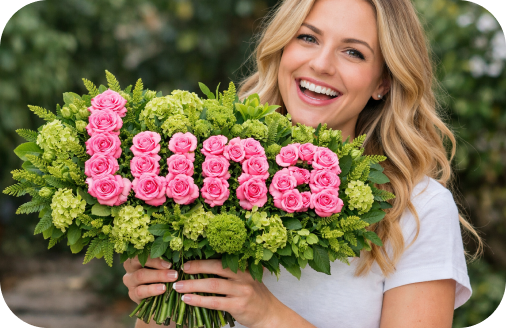
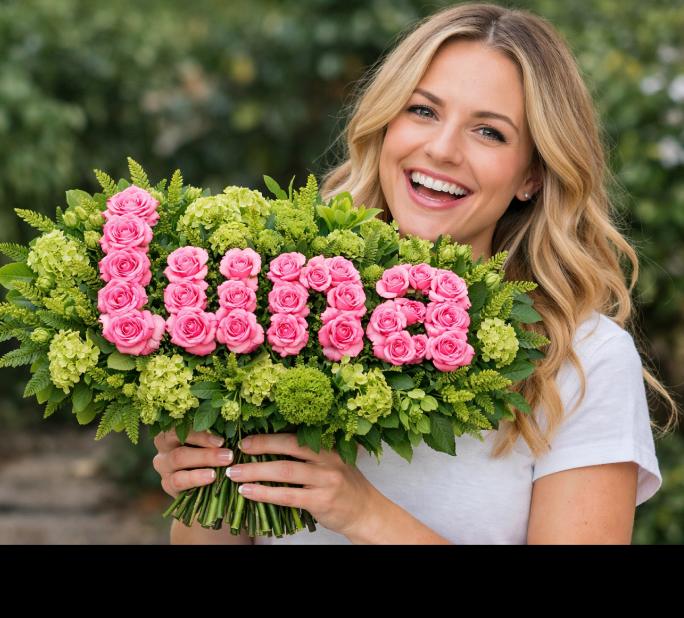
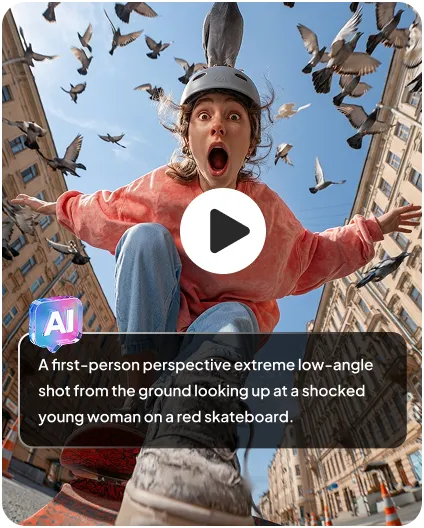
Example Output (Seedance 2.5 via HitPaw):
From my experience, having a tool like this makes a big difference. Instead of guessing whether your prompt works, you can test, adjust, and refine in minutes-which is exactly how you improve prompt quality over time.
FAQs about Seedance 2.5 Prompt Writing
A Seedance 2.5 prompt is a structured instruction that tells the model how to generate a video. It includes not just what appears in the scene (subject and environment), but also how it behaves (action, motion) and how it's filmed (camera movement, framing, lighting, style). In practice, it works more like a shot brief than a simple text description.
Based on testing, the ideal length is around 30-80 words. Short prompts often lack clarity, while overly long prompts reduce consistency due to attention limits. The key is not length, but structure-every part of the prompt should serve a clear visual purpose.
It depends on your goal.
- Text-to-videois better for idea exploration and generating scenes from scratch.
- Image-to-videois better for control and consistency, especially when you already have a strong visual reference.
In general, image-to-video produces more stable results, while text-to-video offers more creative flexibility.
Camera movement directly affects how natural and cinematic the final video feels. Without it, scenes can look static or artificial. Adding clear instructions like "slow push-in" or "tracking shot" helps the model simulate real-world filming, which significantly improves motion quality and visual storytelling.
Conclusion
With Seedance 2.5, prompt quality directly determines video quality. The biggest shift is simple: stop thinking in keywords, start thinking in structured shot briefs. Clear subject, defined motion, and intentional camera movement will always outperform vague descriptions. If you want to improve fast, start with proven templates, keep prompts concise, and iterate based on results. And if you're looking for the easiest way to test and refine your prompts, HitPaw Online AI Video Generator is a great place to start.

- Turn text or images into videos in seconds
- Multiple styles (animation, realistic, social media)
- Auto transitions and scene generation
- No download required, fully online


