















Last Updated: 2026-07-31
Sora AI has quickly become popular for AI video generation thanks to its speed and creative capabilities. However, many users notice blurry output or lost fine details. If you do not want expensive professional video editing software, finding a simple way to improve video quality can be a challenge.
In this guide, you'll learn why Sora AI videos sometimes look blurry and discover practical ways to enhance their clarity, resolution, and overall visual quality. We'll also show you how to enhance Sora AI video quality, so you can achieve sharper, more polished results without advanced editing skills. Additionally, we will provide specific solutions for common issues like fixing video noise or grainy effects. If you've run into other challenges while creating AI videos, you might just find the answers you need in our troubleshooting section below.

Part 1: Why Is Your Sora AI Video Blurry? Common Causes of Poor Video Quality
If your Sora AI-generated videos look blurry or lack details, it does not always mean there is something wrong with your workflow. Video quality can be affected by several factors, including prompts, output settings, and the limitations of AI video generation. Understanding these common causes can help you find a better way to improve your results.
1. Incomplete or Unclear Prompts
Sora AI relies on your prompts to understand what you want to create. If your description lacks details about the scene, camera movement, lighting, or subject, the generated video may appear less detailed or less sharp.
2. Low Video Resolution
The output resolution directly impacts video clarity. Lower-resolution videos may look blurry, especially when viewed on larger screens or uploaded to platforms that compress video files.
3. Limitations of AI Video Generation
Although Sora AI can create impressive videos, AI generation still has some limitations. Complex movements, facial details, and fine textures may sometimes appear inconsistent or less clear.
4. Video Compression
Downloading, sharing, or uploading videos can affect their quality. Some platforms automatically compress video files, which may reduce sharpness and make details less visible.
5. Lack of Built-in Video Enhancement Features
Sora AI focuses on generating videos rather than enhancing existing ones. It does not offer a free built-in video quality improvement feature, so additional AI video enhancement tools are often needed to improve clarity and resolution.
In most cases, blurry Sora AI videos are caused by a combination of different factors. However, you do not need to recreate the entire video from scratch. With the right video enhancement methods, you can improve clarity, resolution, and overall visual quality.
Part 2: Enhance Your Sora AI Videos with HitPaw VikPea's AI Upscaling
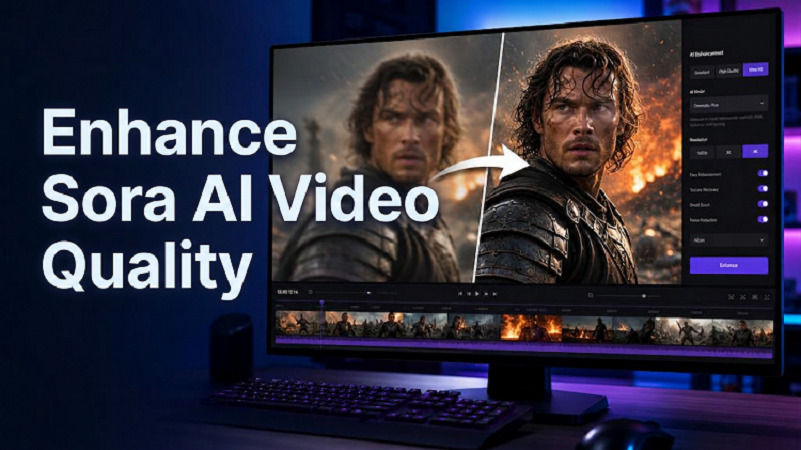
HitPaw VikPea is an AI-powered video enhancement tool from HitPaw that uses advanced AI upscaling technology to enhance AI-generated videos online free with just one click. Unlike traditional video enhancement software that requires manual adjustments and technical expertise, HitPaw VikPea offers a much simpler and faster way to enhance video quality.
Whether you're looking to sharpen blurry footage, increase resolution, or restore fine details, it can significantly improve Sora video enhancer in just a few steps. This makes it an excellent choice for users who want a quick, efficient, and hassle-free way to optimize their Sora-generated videos.
Key Features
- Enhance video resolution with AI upscaling technology, making blurry Sora AI videos clearer and sharper.
- Automatically restore facial features, textures, and scene details to improve the realism of AI-generated videos.
- Reduce blur, noise, and compression-related quality loss for cleaner and sharper visuals.
- Provide multiple AI enhancement models to optimize different types of video content for better results.
- Enhance video quality with one click without requiring complex video editing skills.
- Support up to 4K/8K high-resolution exports for better playback, sharing, and further editing.
- Preserve natural colors and fine details while improving clarity and avoiding over-sharpened results.
Part 3: How to Enhance Sora Videos with HitPaw VikPea Step by Step
-
HitPaw VikPea on your computer to begin.
-
Open the software and choose the video enhancer option from the dashboard.
-
Upload your blurry or low-resolution Sora AI-generated video to HitPaw VikPea. The software will intelligently recommend the most suitable AI model based on your video, or you can manually select your preferred enhancement model. Then click Preview to check the results.
-
HitPaw VikPea automatically analyzes and processes your Sora AI video.
-
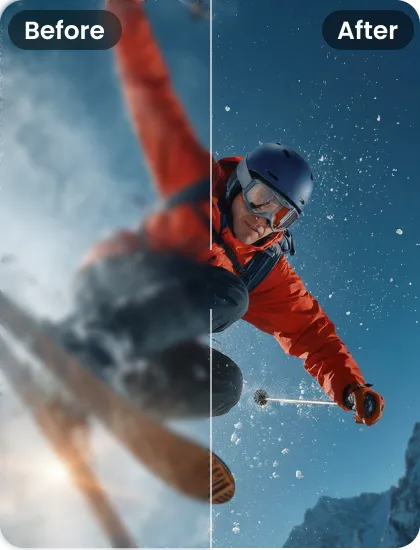
Preview the enhanced Sora AI video and compare the results with the original footage. Once satisfied, you can export the video directly or use cloud export for convenient saving and sharing.
 Bonus Tips:
HitPaw VikPea works best for blurry AI-generated videos, low-resolution exports, and videos with lost facial or texture details.To achieve the highest-quality output, avoid repeatedly compressing your video before enhancement and always export the enhanced version at the highest resolution supported.
Part 4: Why Choose HitPaw VikPea Over Other Video Enhancement Methods
There are several ways to improve blurry Sora AI videos, but different methods come with different challenges.HitPaw VikPea provides a simpler AI-powered approach for users who want to enhance video quality without complicated editing.
Compared with Traditional Video Editors
Professional video editors like Adobe Premiere Pro and DaVinci Resolve offer powerful editing features, but improving video quality often requires manual adjustments for sharpness, noise reduction, and other settings. HitPaw VikPea uses AI technology to automatically analyze and enhance video quality, making it easier to improve Sora AI videos without advanced editing skills.
Compared with Free Online Video Quality Enhancers
Free online video enhancers such as CapCut Online and VEED are convenient for quick edits, but they may come with limitations like file size restrictions, slower processing speeds, or limited enhancement effects. HitPaw VikPea provides a more stable AI enhancement workflow that focuses on improving video details and overall quality.
Compared with Basic Video Upscalers
Basic video upscaling tools mainly increase resolution by enlarging pixels, but they may not effectively restore missing details. HitPaw VikPea uses AI models to analyze video content, improve clarity, reduce blur and noise, and create more natural-looking results for Sora AI-generated videos.
Part 5: Tips to Make Your Sora AI Videos Higher Quality
Creating high-quality videos with Sora AI is not only about creative ideas but also depends on how you write your prompts and configure your video settings. Here are some practical tips to help you generate more realistic, clearer, and more visually appealing Sora AI videos.
Write Clear and Detailed Prompts
A well-written prompt helps Sora AI better understand your vision. Include specific details such as the subject, environment, camera angle, lighting, motion, and visual style. The more precise your description is, the easier it is for AI to generate a video that matches your expectations.
Choose the Right Video Style and Settings
Before generating your Sora AI video, consider the desired style and purpose. Whether you want a cinematic scene, realistic footage, or creative animation, optimizing key technical settings,such as resolution (e.g.1080p or 4K), frame rate, and aspect ratio (e.g.16:9 or 9:16)and visual styles can improve the overall quality and consistency of the output.
Bonus Tips:
For the best results, combine clear prompts with high-quality source settings. If the generated video still lacks detail, you can further improve sharpness and resolution using an AI video enhancer such as HitPaw VikPea.
Part 6: Common Sora Video Quality Issues and How to Fix Them
Blurry Image Quality in Sora AI Videos
Solution: You can use HitPaw VikPea to enhance your Sora AI videos with AI-powered video enhancement technology. It helps improve resolution, sharpen details, and make your videos look clearer and more natural.
Resolution Enhancement for Sora AI Videos
Solution: Use an AI video upscaling tool to increase video resolution. HitPaw VikPea supports AI upscaling technology, helping transform low-resolution Sora AI videos into higher-quality videos while improving overall details.
Unrealistic Details in Sora AI Generated Content
Solution: In addition to improving your Sora AI prompts, you can use AI video enhancement technology to refine the final output. HitPaw VikPea intelligently enhances video details,helping improve the clarity and realism of your AI-generated content.
Noise and Grainy Effects in Sora AI Videos
Solution: Apply AI noise reduction to clean up your video. HitPaw VikPea helps reduce unwanted noise while preserving important details, creating smoother and cleaner video results.
Professional Visual Quality for Sora AI Videos
Solution: Improve your final video with post-processing tools. HitPaw VikPea helps enhance resolution, clarity, and visual details, making your Sora AI videos look more polished and professional.
FAQs
Use detailed prompts, high-quality materials, and proper settings to improve Sora AI video quality. HitPaw VikPea can further enhance the clarity and details of your videos.
Yes. Sora is one of the leading AI video generators, but different tools suit different creative needs. HitPaw VikPea helps improve the quality of AI-generated videos.
Create detailed prompts and describe the scene, motion, camera angles, and style clearly to get better Sora AI video results.
You can make Sora videos more realistic and detailed by using specific prompts with clear descriptions of lighting, camera movement, and visual details. For further improvement, AI video enhancers can help increase sharpness, reduce blur, and restore more details.
Yes, you can convert 4K Sora AI videos to HD by adjusting the resolution. HitPaw VikPea helps maintain better clarity and quality during the process.
Conclusion
Sora AI has opened up new possibilities for video creation, allowing anyone to turn ideas into impressive visual content. However, generating a video is only the first step—achieving a polished, high-quality result often requires further optimization. By combining better prompt techniques with AI-powered enhancement tools like HitPaw VikPea, you can refine your Sora AI videos, improve visual quality, and bring your creative ideas closer to professional results.


