
















How to Use Kapwing AI Image to Video: A Complete Guide
What if you could convert a photo of a car into some Transformers-type video, or what if a simple product shot could be transformed into a dynamic motion video with a brand new aspect ratio? And the best part is that it takes zero editing skills.
This isn't Photoshop or After Effects. This is the Kapwing AI Image to Video generator, and it might be the easiest way to bring your photos to life.
Create Now!Part 1. What is Kapwing AI Image to Video Generator?
Here's the deal. Most AI tools can only produce a video from a text prompt. Now Kapwing can do that too, but it can also turn an image and animate it into a moving clip.
That means your product shots, your Instagram photos, memes, and even screenshots can all be transformed into scroll-stopping videos. Unlike other apps, you don't need to move between five different tools to make it happen.
Now you can add a voiceover and include subtitles. You can also add background music from the stock library, or copy and paste a song from YouTube using the URL.
In a few simple clicks, you can turn a standard vertical product image into a landscape or any other dimension video that is ready for sharing on social media or on a company website.
But while this looks serious, remember, Kapwing AI Image to Video generator is what you make it. Imagine turning your lock screen background into something that really pops, or designing the most elaborate tattoo removal video on the internet, or turning a classic meme into a classic video.
Honestly, whatever you can imagine, you can create in this tool.
Part 2. How to Use Kapwing AI Image to Video
To use the Kapwing AI Image to Video generator, here are the simple step-by-step instructions:
Step 1. Upload Image and Generate Video
Start by heading to the Kapwing website and clicking the light bulb icon in the top corner. This opens the AI Hub.

Choose Video Clips and upload your image.
Select a video provider or a model from the list and add key details like resolution, length, and aspect ratio.
These settings are important if you plan to post the video on TikTok, YouTube, or Instagram, where different video dimensions are required.
Then type a simple prompt. For example, you could write something like change the image to a subtle, realistic, sunny daytime shot with realistic motion.
Finally, click Generate Video, and that's it.
After a few moments, your photo becomes animated just like this.
Step 2. Generate Multiple Scenes in One Video
One thing you may want to do is create multiple scenes inside one video. To do this, select Seedance Pro at the beginning and use the phrase "the camera switches" throughout your prompt.
When you do this, the video changes scenes based on your input.
For example, two figures look at the traffic as rain falls with several cyborg figures passing. The camera switches to a close-up of one of the figures lighting a cigarette. Then the camera switches to one of the characters lighting a cigarette for the other.
As you can see in the video, the camera angle changes and focuses on different elements.
Step 3. Extend the Video with Multiple Clips
Now let's say you want a much longer video with several clips sewn together, like the cartoon example, but maybe a longer episode with back-to-back clips.
There is a quick trick for that as well.
Take a still image, such as an album cover. In one video generation, you can turn this image into a six-second clip where the subject moves and elements change visually.
If you want to continue the same video from that exact moment, you need to create a freeze frame.
First, move the video into the project. Then, go to the timeline, right-click the video, and select Freeze Frame.
This creates an enhanced screenshot from the video.
Then go back to the AI tools section and upload that freeze frame as the reference image.
After that, you can generate the next scene of the video, and it will continue naturally from the end of the previous clip.
For example, you could enter a prompt as the camera switches to another character taking a photo, and the next scene will appear as the continuation of the story.
You can repeat this process as many times as you want to build a longer video with multiple scenes and clips connected together.
Part 3. Video Models Available in Kapwing AI Image to Video Generator
When you upload an image and open the model dropdown, you will notice several video engines available. Each one produces motion a little differently, so the choice changes how the final clip looks once it is generated.
Kai V1 is the default option inside Kapwing. You upload the image, write a prompt, and the system generates a short animated clip from that still frame. It is usually the starting option when you simply want to see the image come to life.
Seedance Pro is useful when you want scene changes inside a single generation. By writing prompts that include phrases like "the camera switches," the clip can move between different angles or viewpoints.
Kapwing Motion Control allows prompts that describe camera movement or object movement inside the frame. If the image includes people, vehicles, or scenery that should move across the frame, this model tends to interpret that motion clearly.
Sora 2 produces scenes that look more like continuous footage rather than short looping motion. When the prompt describes a location or environment, the clip often looks like a moment captured from a larger scene.
Veo 3 produces clips with more detailed environments and natural lighting conditions. When an image includes landscapes, architecture, or wide scenes, this model tends to produce very convincing motion from the original photo.
Part 4. Prompting Tips to Convert Image to Video in the Kapwing AI Video Generator
While using the Kapwing AI Image to Video generator, the prompt becomes the instruction that tells the scene what should happen. If the prompt only describes the subject in the image, the result often looks static. The key is to describe what changes or moves inside the frame.
For best results, start by describing the scene clearly. Then, mention the setting, the time of day, and the atmosphere around the subject. For example, if the image shows a mountain landscape, you can describe clouds moving across the sky, sunlight shifting through the clouds, or wind moving across the grass.
These small changes really make the elements in the image look alive.
After describing the environment, describe the movement. This could be motion from the camera or motion from elements inside the image. A prompt might describe the camera slowly moving forward, shifting to a different angle, or slightly zooming toward the subject. These instructions change how your viewer experiences the scene carved out of your image.
You can also explain the movement inside the image in your prompt. For example, you can describe people walking in the background, leaves moving in the wind, water flowing through a river, or lights flickering in a city street. Even subtle movement makes a big difference compared to a completely still image.
Lighting descriptions also help improve the animation in the Kapwing AI Image to Video generator. An example here is to describe sunlight passing through clouds, reflections appearing on water, or shadows moving as the light changes. These types of details add motion without dramatically changing the scene.
If the first generation does not look the way you imagined, try adjusting the wording a bit. Sometimes adding one extra detail or changing how the movement is described produces a completely different result.
Part 5. Creative Ways to Use the Kapwing AI Image to Video Generator
Once you understand how animation works in the Kapwing AI Image to Video generator, there are many creative ways to use it. A still image can quickly become a short video that feels much more engaging than a regular photo.
Product Photos for eCommerce
Product images are one of the most common use cases for converting them into videos.
For instance, you can convert a simple product photo into a short promotional video where the camera slowly moves around the product, lighting changes slightly, or the background gains subtle motion.
You can also use the same product image to create e-commerce promo videos for marketplaces, ads, or social media. A use case here is to convert a product photo into a short video where the product rotates, price text appears on screen, and branding elements fade in during the clip. Businesses can really benefit from using this approach to turn static product images into short marketing videos without having to film anything.
Social Media Posts
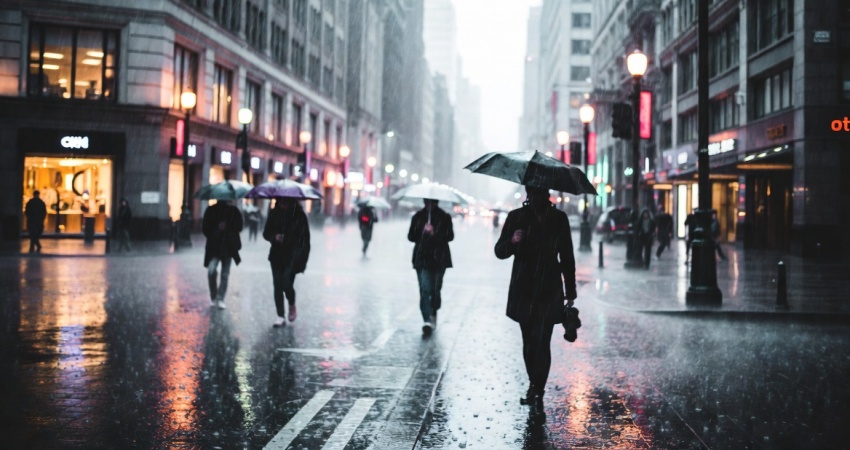
As a social media creator, you can also use the Kapwing AI Image to Video generator to turn simple photos into short cinematic scenes. For example, you can convert a photo of a busy city street into a video with elements like traffic passing by, lights glowing from buildings, and people walking through the frame.
Memes
Memes can also become more expressive when you convert them into videos. As an example, you can convert a classic meme image into a short animated scene where the character moves slightly, the camera zooms closer to the subject, or the background changes subtly. This kind of motion often makes the meme more entertaining when shared online.
Artwork & Illustrations
Artwork and illustrations can also gain motion through image animation. For example, you can convert a character illustration into a video where the character slightly turns, clothing moves naturally, or the camera slowly shifts across the artwork to show different parts of the illustration.
Creating AI Influencers and Virtual Characters
Using the Kapwing AI Image to Video generator, you can convert a character image into a video where it appears to walk, talk, or react to the environment. Kapwing itself highlights examples like the Bigfoot influencer or Big Yowie, where creators generate short clips of a fictional character doing everyday activities and posting them like a social media personality.
You can use this same technique to turn a character illustration into a virtual creator that appears in short clips, reaction videos, or story-style content.
Bringing Historical or Old Photos to Life
Another interesting use case is converting historical or vintage photographs into videos using the Kapwing AI Image to Video generator.
For example, you can convert an old portrait photo into a video where the person slightly moves their head, blinks, or changes expression. This technique presents historical figures in a more engaging way.
Wallpapers or Backgrounds
Even wallpapers and landscape photos can turn into animated visuals. You can convert a mountain landscape image into a video where the camera slowly moves across the scene, sunlight shifts across the mountains, or mist moves through the valley.
Educational Content and Learning Videos
Image to Video can also help when explaining information.
In Kapwing AI, you can convert a diagram, slide, or educational illustration into a short video to move arrows or other elements across the graphic, make the labels appear next to parts of the image, or have the camera slowly zoom in on important sections. This type of animation helps viewers understand the material faster because the explanation appears step-by-step instead of showing a static slide.
Podcast Clips
The Kapwing AI Image to Video generator can also help when you want to promote podcast episodes on social media.
Instead of posting a static podcast cover image, you can convert that image into 12-second short preview clips. You can animate the podcast artwork while captions from the episode appear on screen and the audio snippet plays in the background. This makes the clip look much more engaging when shared on platforms like TikTok, Instagram, or YouTube Shorts.
Because the animation starts from a single image, you can experiment with many different ideas. The same photo can produce multiple scenes just by changing the prompt or selecting a different video model.
Part 6. Bouns Option: HitPaw Online Video Generator
Changing from general technology to practical application, finding a tool that balances power with simplicity is crucial. Many tools are overly complex or require expensive hardware.
For users seeking an accessible, all-in-one solution that requires no downloads, we recommend HitPaw Online Video Generator. It combines advanced AI models with a beginner-friendly interface, making it the ideal starting point for creating AI-generated videos.
Generate Now!Key Features of HitPaw Online Video Generator
- Text to Video for Specific Content: Generate cinematic scenes directly from text prompts. Simply describe the atmosphere, the characters, and the lighting, and HitPaw's engine visualizes your imagination instantly.
- Image to Video Content Creation: Turn static images into dynamic videos. This is perfect for animating photos or bringing two characters from a static fan-art image to life with realistic motion.
- Built-in Templates: Access a library of pre-designed templates tailored for all sorts of scenario. Quickly create videos like above tools without starting from scratch.
- Multiple AI Styles: Match your creative vision by selecting different aesthetics. Whether you want a fantasy look or a "Photorealistic" style for personal memories, HitPaw adapts to your needs.
- 100% Online, No Installation: Create kissing videos directly in your browser. There is no need to download heavy software or have a powerful computer; the cloud-based processing handles the heavy lifting.
- Optimized for Social Media: The tool offers aspect ratios suitable for TikTok, Instagram Reels, and YouTube Shorts, ensuring your romantic creations are ready to go viral immediately.
How to Use HitPaw to Create AI Videos Online
Step 1: Open HitPaw Online Video Generator and select the "Image to Video" or "Text to Video" function.
Step 2: Upload your photo or type a descriptive prompt like the way you put in others.
Step 3: Select your preferred resolution and adjust the motion intensity settings.
Step 4: Click "Generate" to process, then preview and download your AI videos.
Generate Now!
Part 7. FAQs of Kapwing AI Image to Video Generator
Q1. How does the Kapwing AI Image to Video generator work?
A1. The Kapwing AI Image to Video generator lets you upload an image and combine it with a short text prompt to create an animation. It uses your photo as a starting frame and then applies your prompt to guide the output.
Q2. Can I edit videos generated in the Kapwing AI Image to Video generator?
A2. Yes, you can edit and customize videos generated in Kapwing. Once you generate the video, you can add it to the project, where you can change different elements of the project. Depending on your Kapwing subscription plan, you can add branded backgrounds, adjust colors, replace images, or include logos to match your brand style.
Q3. Which model works best in Kapwing AI Image to Video?
A3. Although you can use any model to convert static photos into videos, Kapwings recommends the Seedance Pro model.
Conclusion on Kapwing AI Image to Video Generator
That is the magic of the Kapwing AI Image to Video generator. It turns any image into a moving clip, and the process is very simple.
You can create short clips that last only a few seconds, or create a longer video project that includes multiple scenes, voiceover, and sound effects.



Home > Learn > How to Use Kapwing AI Image to Video: A Complete Guide
Select the product rating:
Natalie Carter
Editor-in-Chief
My goal is to make technology feel less intimidating and more empowering. I believe digital creativity should be accessible to everyone, and I'm passionate about turning complex tools into clear, actionable guidance.
View all ArticlesLeave a Comment
Create your review for HitPaw articles