

















Last Updated: 2026-10-14
Mosaic censorship or heavy compression blocks crucial frame information, turning visual content into jagged square grids. JavPlayer uses artificial intelligence to analyze pixel patterns, restore missing visual details, and smooth out harsh geometric boundaries. This guide walks you through the entire process, covering fundamental concepts, hardware requirements, software installation, optimal JavPlayer AI settings, and potential limitations. You will also learn about alternative video upscaling solutions to upgrade your overall video library effortlessly.
Part 1. What Is JavPlayer and How Does AI Mosaic Reduction Work?
JavPlayer is an automated video processing player designed to smooth, reconstruct, and enhance pixelated regions using temporal visual interpolation. The software identifies mosaic grid lines across consecutive frames, replacing static blurred blocks with synthetic textures generated through advanced neural network models.
1. Understanding Deep Learning & Super-Resolution (TecoGAN)
At the heart of modern mosaic reduction is TecoGAN (Temporally-Coherent GAN), a specialized generative adversarial network designed for video super-resolution. Standard image upscalers treat every frame independently, which leads to annoying flickering artifacts when applied to moving video. TecoGAN solves this by analyzing multiple adjacent frames simultaneously. The spatial generator estimates obscured pixels based on surrounding frame data, while the temporal discriminator tracks motion vectors to maintain frame-to-frame consistency. This multi-frame deep learning process predicts fine edge details, smooths pixel boundaries, and synthesizes higher-density color textures that match the motion dynamics of the original recording.
2. Reconstruction vs. Uncensoring: Managing Realistic Expectations
A common misconception surrounding mosaic reduction software is that it magically reveals original unedited footage. In reality, once digital censorship or heavy pixelation is rendered into a video file, the original underlying pixel data is permanently destroyed. JavPlayer does not uncover hidden visual layers. Instead, it performs intelligent AI reconstruction. The software uses predictive super-resolution to guess what the missing details should look like based on surrounding visual context. By blending, smoothing, and interpolating synthetic visual data over the pixelated zones, JavPlayer creates a clearer, significantly less distracting final image rather than a true uncensored master recording.
Part 2. JavPlayer System Requirements & Hardware Prerequisites
Running complex video super resolution models locally requires robust desktop computer hardware. JavPlayer relies heavily on parallel matrix processing to run AI frame generation smoothly.
1. Minimum vs. Recommended Hardware Specs
- CPU: An Intel Core i3 or i5 processor works for basic setup navigation, but an Intel Core i7 or AMD Ryzen 7 CPU is recommended to avoid system bottlenecks during multi-threaded video decoding.
- GPU: An entry-level NVIDIA GeForce GTX 1650 provides minimum functionality. However, upgrading to an NVIDIA GeForce RTX 3060, RTX 4070, or higher is strongly recommended. Higher CUDA core counts and expanded VRAM drastically reduce per-frame processing times.
- RAM & Storage: 8GB of system RAM is the absolute minimum, while 16GB to 32GB of high-speed RAM is optimal. High-speed NVMe SSD storage is essential for rapid file reading and frame-buffer caching during export operations.
2. Required Software Dependencies: CUDA, cuDNN, and Python Extensions
To unlock full GPU hardware acceleration, JavPlayer requires specific software frameworks built by NVIDIA. You must install the matching version of the NVIDIA CUDA Toolkit along with the corresponding cuDNN (CUDA Deep Neural Network) library binaries. These software layers translate the mathematical operations generated by Python-based AI scripts directly into hardware commands for your graphics card cores. Without proper CUDA and cuDNN configurations, the software reverts to CPU processing mode, making frame rendering unacceptably slow.
Part 3. How to Download and Install JavPlayer and TecoGAN?
Setting up JavPlayer involves downloading core program files and manually integrating external AI model extensions. Follow these steps for a clean JavPlayer TecoGAN setup.
1. Download the latest official JavPlayer distribution archive alongside the separate TecoGAN plugin package from verified software repository sources.

2. Extract the main JavPlayer zip file into a dedicated root folder directory, such as C:\JavPlayer\, avoiding non-English characters or complex symbols in the file path.
3. Open the extracted JavPlayer directory and locate the subfolder named TG.
4. Extract the TecoGAN package files and place the core python scripts alongside model files (TGMAIN and TG-MODEL) directly into that \TG\ directory.
5. Install the appropriate NVIDIA CUDA Toolkit and cuDNN libraries matching your system GPU drivers to establish complete hardware acceleration capabilities.
6. Launch JavPlayer.exe as an administrator, access the internal settings menu, and set your target processing device to your primary NVIDIA GPU.
Part 4. How to Use JavPlayer to Reduce Mosaic?
Once your installation is complete, follow this straightforward JavPlayer tutorial to process your target video files effectively.
Step 1: Import and Verify the Video
Drag your video file into JavPlayer. Play the clip briefly to confirm smooth playback. If the video stutters or fails to load due to an unsupported codec, re-encode it to a standard MP4 (H.264) format before proceeding.
Step 2: Define the Target Mosaic Region
Activate the region selection tool and draw a tight bounding box strictly around the pixelated area. Keeping this selection as precise as possible prevents unnecessary processing on unblurred pixels and accelerates render times.
Step 3: Select a TecoGAN (TG) Model
Navigate to the processing mode menu and choose an AI reconstruction engine based on your source footage:
- TG-STD: The recommended baseline model for a balanced, natural output.
- TG-AF: Best for refining sharp edges or reducing specific visual artifacts.
- TG-X4: Designed for lower-resolution source clips requiring heavy upscaling.
Tip: Begin with TG-STD, evaluate the initial output, and adjust to specialized models if needed.
Step 4: Configure Bitrate and Output Settings
Set your target export bitrate to a balanced range, typically between 3 Mbps and 5 Mbps. Avoid setting excessively high bitrates, as this increases overall file size without meaningfully improving visual quality.
Step 5: Process and Render the Clip
Click Record to initiate the frame-by-frame reconstruction. JavPlayer processes the highlighted region in real time as the video plays back. Total export duration generally matches or exceeds the clip's actual length depending on your GPU performance.
Step 6: Preview and Fine-Tune
Inspect the generated output file. If the processed area appears blurry, noisy, or unnatural, refine your bounding box, switch processing modes, or adjust sharpness and color sliders before running a second pass.
Part 5. Limitations & Risks of JavPlayer
While JavPlayer offers powerful frame reconstruction capabilities, users should be aware of several technical constraints and operational risks before processing large media libraries.
- Heavy processing demand on consumer graphics cards leads to elevated operating temperatures, system fan noise, and potential thermal throttling during long renders.
- Artificial detail synthesis can introduce visible visual artifacts, synthetic warping, or dynamic flickering when processing fast motion sequences.
- Inability to process non-standard video codecs smoothly without pre-converting files using external media tools like Handbrake or FFmpeg.
- Extremely slow rendering speed when processing content using CPU execution modes on hardware lacking native NVIDIA CUDA integration.
- Strict file system directory requirements mean minor naming errors or missing dependencies easily cause application startup crashes.
- Output quality drops significantly on low-resolution source files (e.g., 480p or below), as the AI lacks sufficient unblurred contextual data.
Part 6. Enhance Video Quality Effortlessly with HitPaw Video Enhancer Online
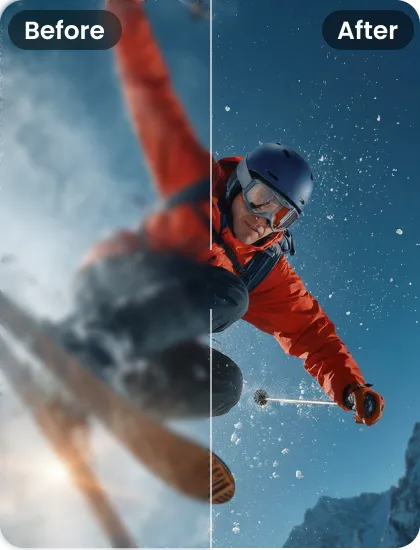
If complex directory setups, manual parameter tuning, and CUDA dependency errors sound overwhelming, an automated AI alternative can save you hours of technical hassle. HitPaw Online Video Enhancer offers an intuitive, professional-grade solution to remove mosaic from video artifacts, eliminate visual noise, and perform automated video super resolution upscaling with zero configuration stress.
- Boost low-resolution video inputs to ultra-sharp 4K or 8K outputs.
- Remove pixel compression artifacts while preserving fine visual textures.
- Restore blurred facial structures and smooth natural skin tones automatically.
- Sharpen lines and restore clarity in hand-drawn or digital anime.
- Directly remove mosaic in video online without downloading software.
-
First, visit the HitPaw Online Video Enhancer website. You can use it on your computer without installing extra software. Import your video Or directly drag the video into the Video Enhancer workspace .
Enhance NowSecure Link
-
After uploading the video, choose the AI model based on your needs and then choose resolution like 4K. Then let AI process the video.
-
Once the process is complete, preview the enhanced video. Finally, download the enhanced anime video to your device. You can then watch it on a larger screen, share it on social media, or use it in your anime edits.
Frequently Asked Questions on JavPlayer
JavPlayer offers a trial version that allows users to test playback features and basic mosaic reduction algorithms. However, trial exports include visible watermarks and restrict output resolution options. Unlocking full rendering settings, higher output resolutions, and unrestricted processing capabilities requires purchasing a paid license key from official software distributors.
JavPlayer can launch using standard CPU rendering modes, but processing speeds drop exponentially. Complex AI algorithms like TecoGAN rely heavily on NVIDIA CUDA architecture. Running the software on integrated graphics or unsupported hardware often results in freezing, rendering errors, or export times taking dozens of hours for short video clips.
Common causes of crashes when loading videos include missing TecoGAN dependency files, incompatible NVIDIA CUDA/cuDNN driver versions, or unsupported input video codecs. You can resolve most startup crashes by installing recommended codecs, verifying folder structures, updating GPU drivers, and avoiding non-English special characters in file path names.
JavPlayer is the full-featured desktop program suited for advanced users who want custom manual parameter controls, frame recording options, and full TecoGAN model access. JavPlayerEZ is a lightweight variant optimized primarily for quick real-time preview playback with simpler, automated controls requiring minimal manual setup.
To avoid malware or altered software packages, download JavPlayer exclusively from its official website or verified developer release threads. Avoid third-party repack sites offering cracked archives, as these frequently contain missing core dependencies, broken TecoGAN script bindings, or bundled unwanted software programs.
If JavPlayer fails to detect TecoGAN, the model subfolder files are likely placed in an incorrect directory path. Ensure all extracted Python components, script dependencies, and model files reside directly inside the designated \TG\ folder inside your main JavPlayer root directory without nested duplicate subfolders.
Conclusion
Understanding How to Use JavPlayer to Reduce Mosaic gives media archivists and video editing enthusiasts a powerful method to minimize distracting pixel grids using deep learning algorithms. By setting up proper CUDA dependencies, choosing suitable TecoGAN processing models, and fine-tuning blur parameters, you can significantly enhance video viewing experiences. However, when technical hardware hurdles, manual selection tools, or long render times become inconvenient, fully automated AI alternatives like HitPaw VikPea Video Enhancer provide a fast, flexible, one-click solution to upscale, repair, and revitalize low-quality footage.
- Upscale videos to HD or 4K quality
- Remove blur, noise, and improve clarity
- Restore old or low-quality footage
- One-click enhancement, beginner-friendly


