
















Everything About Canva AI Image to Video You Actually Need to Know
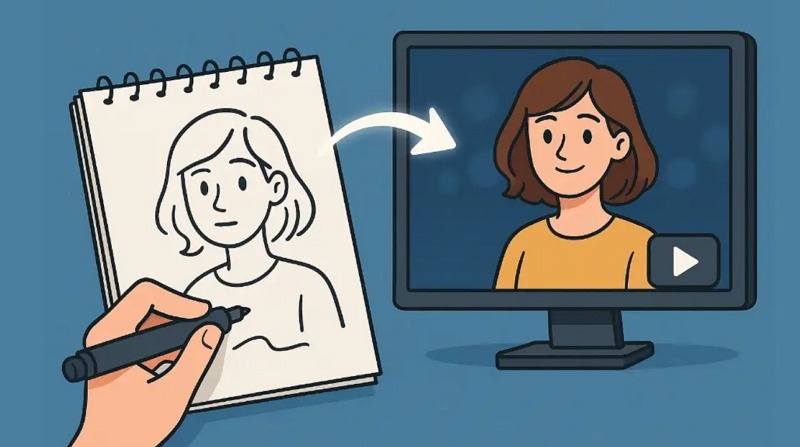
Canva AI Image to Video tool takes your regular photos and turns them into motion, and honestly, it's packed with different features that make the whole process way easier than you'd think. There are two ways to generate videos from photos in Canva, and we'll discuss them below.
Create Now!Part 1. Canva AI Image to Video Feature in the AI Video Generator
The Canva AI Image to Video tool is inside its dedicated AI video generator section, and you can find it by opening up any project or creating a new one in Canva and then navigating to the Apps section.

Once you're in there, you'll see the AI video generator, and you need to specifically select the Image option because Canva's got a dedicated Text to Video option as well to generate videos.
AI Models and Image Uploads In Canva Image to Video AI
Right when you land in Canva AI Image to Video, the very first decision you need to make is selecting which AI model you want to use for your generation. Canva gives you access to some seriously cutting-edge options here, including the latest models of Seedance, WanX, Google Veo, Kling, Sora, Hailuo, and Luma Ray.
Each of these models has been trained differently and produces distinct visual styles and motion characteristics, so the one you pick is gonna dramatically affect how your final video looks and feels, whether that's in terms of how realistic the motion appears, how it handles lighting and shadows, or how well it interprets your creative direction.
After you've locked in your model choice, you'll move on to uploading your image, which is the foundation that the AI is gonna use to build out your video content. So obviously, the quality and composition of your starting image matter quite a bit in terms of what you're going to get back from the generation process.
Crafting Text Prompts in Canva Image to Video AI
Once your image is loaded up, you're looking at the prompt box where you describe exactly what kind of video you want the AI to create from your static photo. This is where you really get to exercise your creative muscles by specifying things like the scene setting, the overall mood and atmosphere, and the specific actions or movements you want to see happening.
Canva AI Image to Video actually helps you out here by showing you example prompts right in the interface, which serves a dual purpose because not only does it give you ideas if you're feeling stuck, but it also teaches you the kind of language and specificity that works best with these AI models. This way, you can get more consistent and higher-quality results.
If you're sitting there completely blank on what to write or you just want to see what the Canva AI thinks would work well with your particular image, you can use the Inspire Me section. Here, Canva's AI will generate prompt suggestions automatically. You can take those AI-generated ideas and modify them, combine them, or use them as a jumping-off point to develop your own unique creative direction rather than having to come up with everything from scratch.
Optional Video Effects for Portraits
Here's something really interesting that sets the Canva AI Image to Text tool apart from a lot of other image-to-video generators. Canva includes these optional video effects that are specifically designed for portrait photos, like hugging, kissing, and muscle surge. These are preset animation templates that make it easy to create engaging videos from your portrait images without having to describe every single detail in your prompt.
These effects are perfect for when you want to create fun social media content, and you don't want to spend a ton of time fine-tuning prompts and experimenting with different settings. You just have to select one of these pre-made effects and let the AI handle all the technical details of making your portrait come to life.
Video Settings and Aspect Ratios
When it comes to the actual video settings, you've got two main duration options to choose from. Either 5 seconds or 10 seconds. While that might seem limiting compared to some other tools that let you dial in exactly how long you want your video to be, it actually makes the decision-making process simpler because you're just choosing between a quick, punchy clip or a slightly longer sequence that gives you more breathing room for your concept to develop.
You can also select an aspect ratio for the generated video intended for different platforms. These can be 9:16 for TikTok and Instagram Reels, 16:9 for YouTube and traditional horizontal video, 1:1 for Instagram feed posts, 3:4 for certain Facebook and Pinterest formats, 21:9 for that ultra-wide cinematic look, and 9:21 for other vertical platform needs. You can literally create your video in the exact dimensions you need without having to crop or resize it later in a separate editing tool.
Canva AI Image to Video Pricing
The Canva AI Image to Video generation is not free. You need to be subscribed to their Pro plan to even access it, which comes with its own tiered pricing structure based on how many videos you plan to generate.
The breakdown is $6 if you just need a single video, $19 if you want to create 4 videos, $39 for a package of 12 videos, and $99 if you're going big with 35 videos. So, depending on how heavily you're planning to use this feature, you might want to commit to one of the larger packages upfront because the per-video cost drops significantly when you buy in bulk rather than paying for individual generations one at a time.
Part 2. Canva AI Image to Video Using Image Animate
There is another way you can generate videos from images in Canva. The Image Animate feature is basically an app inside Canva AI, and it's designed to take your static images and turn them into actual moving videos using AI, which is honestly kind of wild when you think about it.
The main thing you need to know right off the bat is that this isn't a free tool in the traditional sense because you're going to need at least 40 credits just to generate even a single second of video, and these credits come from Vimmerse that you have to sign into through the Canva editor itself. Canva has integrated this third-party service directly into Canva, so you're technically using the Vimmerse infrastructure but doing it all from within Canva's interface, which keeps everything streamlined but also means you're dealing with their credit system and pricing structure.
Uploading Images and Using Prompts
When you actually get into the Image Animate tool, the first thing you'll see is anupload option under video frame where you can bring in your own images. Here's something cool. If you want to work with multiple images instead of just one, you can click the "Add end frame" button, which lets you use more. So, you can generate a video out of a sequence rather than just animating a single static shot.
Now, if you're sitting there thinking you don't have any images ready or you're just not sure what would work well, Canva's got you covered because they provide example images right there in the interface as a starting point, and you can see what's actually possible with the tool.
Below all that, you'll find a prompt box that works exactly like the text-to-video generation feature in CapCut, where you can type out detailed descriptions of what kind of motion, atmosphere, or specific actions you want to see in your generated video.
The more specific you get with your prompts, the better your results are gonna be because the AI needs that context to understand your vision. If you're stuck or just want some inspiration, there's an "inspiring section" where Canva's AI will actually generate prompt ideas for you automatically, so you can take those suggestions and tweak them to fit exactly what you're going for instead of starting from a blank slate.
Canva AI Image to Video Models
Here's where things get really interesting because the Canva AI Image to Video Animate tool doesn't just lock you into one AI video generation model. You get access to many different options, including Kling AI, Luma AI, Pixverse, WAN, Sora, and several others, and each of these models has its own strengths and characteristics in terms of how it handles motion, visual style, and overall quality.
This means you can actually experiment with different models to see which one gives you the best results for your specific type of content, because maybe Kling AI handles camera movements better while Luma AI produces more natural-looking motion blur, or whatever the case might be. The point is you're not stuck with a one-size-fits-all solution, and that experimentation process is part of what makes this tool so versatile.
Camera Movement Controls
You also get to control the camera movement, and it honestly shows Canva is serious about giving you professional-level control, because they've packed in a massive range of camera control options that you'd typically only find in proper video editing software.
We're talking static shots, crane up, crane down, tilt up, tilt down, pan right, pan left, roll right, roll left, orbit right, orbit left, rotate 360, dolly zoom, zoom in, zoom out, and even aerial movements. Each of these controls dictates how the virtual camera moves through or around your image.
For example, a crane up is gonna give you that dramatic rising shot, while a dolly zoom creates that Hitchcock-style vertiginous effect where the background seems to shift while the subject stays in place. Having all these options means you can match your video to whatever mood or cinematic style you're aiming for, whether that's sweeping epic movements or subtle intimate shifts.
Video Settings and Credit System
When you get to the video settings, you're looking at two main controls: the length of your motion and the number of loops. The length can be set anywhere from one second all the way up to ten seconds, but here's the catch that you really need to understand: that 40-credit minimum mentioned earlier only gets you one second of video, and once you go past five seconds, Canva's gonna prompt you to purchase additional credits because the computational cost of generating longer videos is significantly higher.
The loop function is there for when you've generated a shorter clip, but you want it to repeat multiple times in sequence, so you can specify how many times you want that loop to happen, which is useful for creating background elements or repetitive motion effects.
Before you can actually hit that generate button and see your creation come to life, you absolutely have to make sure you're signed into your Vimmerse account and that you've purchased enough credits there to cover whatever video length you're trying to create. Otherwise, the tool won't even let you proceed without that.
Once you've got your credits loaded up and you're signed in, you can finally generate. Then, the AI will start processing your image, applying all the camera movements, prompts, and settings you've specified to create your final video output.
Part 3. FAQs of Canva AI Image to Video
Q1. Does Canva do image to video AI?
A1. Yes, Canva offers you to generate AI videos from images in two different ways. You can either upload a photo directly to the Canva AI video generator tool or the Image Animate embedded in the Apps section. Both have a prompt box with different video settings.
Q2. Can Canva animate an image with AI?
A2. Yes, Canva AI can animate your images with Image Animate using effects like cross-fade, cut, pan, and zoom that are AI-directed but don't hallucinate details, plus you get nod, shake, wiggle, and handheld camera movements that you can edit yourself.
Conclusion on Canva AI Image to Video
So yes, that's basically everything you need to know about Canva AI Image to Video, and once you get the hang of which models work best for your style and how to write solid prompts, you'll be cranking out videos like real pros.




Home > Learn > Everything About Canva AI Image to Video You Actually Need to Know
Select the product rating:
Natalie Carter
Editor-in-Chief
My goal is to make technology feel less intimidating and more empowering. I believe digital creativity should be accessible to everyone, and I'm passionate about turning complex tools into clear, actionable guidance.
View all ArticlesLeave a Comment
Create your review for HitPaw articles