














How to AI Video Depixelate: 5 Best Tools to Unpixelate Videos
Pixelation in videos blurs out the details, compromising the video's quality and its intended appeal. In this age, everybody yearns to capture their special moments, but pixilation can become a hurdle in rejoicing those captured videos. Luckily, AI has brought a solution in the form of AI video depixelation tools that can deal with the pixel blocks and blurriness. These tools not only repair the videos but also preserve the memories and content in those videos.
To fix pixelated video, you can rely on the top 5 tools, including Vmake AI, TensorPix, Wondershare UniConverter, Picwand, and the best among all, HitPaw AI Video Depixelizer.
Why Use AI Video Depixelate Tools?
Video pixelation is a quite common issue whereby videos become unclear or blurry owing to the lack of adequate visual data. When the visual data is inadequate, it results in visibly large pixels that compromise the quality of the video, blurring out the actual details.
Let's have a look at the most common reasons behind video pixelation:
- Inadequate resolution: If videos are filmed at lower resolution (240p or 480p), then they contain fewer pixels. When these videos are uploaded in HD, the low pixel count makes the video seem stretched out, which blurs out the actual details of the video.
- Excessive zooming: Zooming in an already created video can stretch the video pixels, which makes the video distorted and creates pixel blocks.
- Compression: Many sites where you upload video automatically compress them so that they take up less file space, but this compression often removes essential visual details from the video, leading to pixelation
- Excessive conversions: When video is excessively converted into varying formats and is exported to multiple platforms, then it is likely that some visual detail is lost, which gradually increases video pixelation.
- Recording manners: Mannerisms in recording videos significantly affect video quality. If your camera movement is abrupt, lighting is inadequate, and the camera is outdated, then the video is likely to have pixelation and lower quality.
Video pixelation can significantly reduce video quality. In the past, fixing it required manual editing, sharpening filters, upscaling, and noise reduction, which took time and technical skills but often produced limited results. Today, AI video depixelizer tools offer a faster and more effective solution by automatically detecting distortions, restoring lost details and textures, and enhancing video quality beyond basic upscaling.
5 Best AI Video Depixelizers to Fix Pixelated Video
Worried that you lack technical expertise and professional skills to unpixelate video? You can always rely on AI video depixelate tools to fix the blurred-out or blocky videos in a way that they seem professionally edited with clearer video detailing. You must be wondering how to unpixelate a video through AI tools. Don't worry, we've got you covered. Let's explore 5 of the most efficient and best AI tools to depixelate your videos.
1. HitPaw AI Video Depixelizer
Enhance your video watching and video editing experience with HitPaw AI Video Depixelizer tool. This tool works on advanced AI models that require minimal effort to remove pixelation, upscale video resolution, restore blurry videos, and enhance missing video details.
Key features:
- AI-powered tool that doesn't require professional expertise or education.
- Upscale video resolution up to 4K and even 8K.
- Incorporates noise reduction
- Automated detail enhancement
- Allows video processing in batch
- Shows preview before exporting video
Steps to fix pixelated video
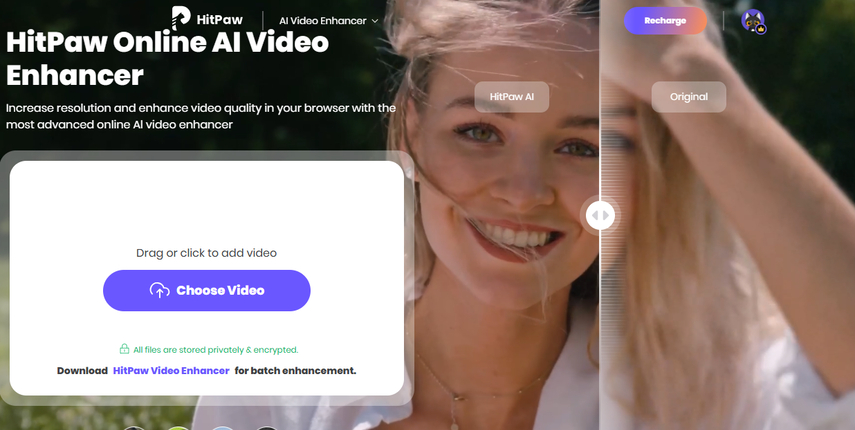
Unpixelate Now!Step 1: Upload pixelated video on Hitpaw
Open the Hitpaw official website, access the video enhancer tool and upload the pixelated video. You can also drag and drop the video.

Step 3: Select specialized AI model
After uploading the video in question, click on the general quality AI model. From here you can choose the desired settings to fix the pixelation in video.
Step 4: Export the fixed video
Once the video is fixed, you can download the unpixelated video to your desired folder and save it on your PC. You can then upload this depixelated video on online platforms.
2. Vmake AI
Based on AI models, Vmake AI allows you to restore video clarity, remove unwanted elements, and enhance overall video quality.
Key features:
- Web browser-based AI solution
- Upscale video resolution up to 1080P, 2K and 4K
- No need to install software on your PC
- Easy to use
- Automatic video detail restoration
Steps to fix pixelated video
Step 1: Open the Vmake AI website
Open the official website of Vmake AI. You can also create a free account and log in if you like.
Step 2: Upload video
Browse pixelated video or drag and drop from a saved folder.
Step 3: Choose AI video enhancer
Click on AI video enhancer and choose the desired output resolution
Step 4: Preview and download unpixelated video
Preview the unpixelated video and download it on your PC.
3. TensorPix
This cloud-based website allows users to upscale videos, interpolate frames, restore video quality, and denoise the videos.
Key features
- Cloud-based, which doesn't need any software installation
- Noise removal
- AI-based video enhancement
- Motion smoothing
- Video resolution up to 4K
Steps to fix pixelated video
Step 1: Open the website and log in
Go to the Tensorpic official website, create an account, and log in.
Step 2: Upload pixelated video
Click on Browse to upload the pixelated video
Step 3: Choose depixelate settings
Click on the enhance video option, choose your upscaling and depixelate settings. Afterwards, start the processing.
Step 4: Download and save
Once the video is processed, you can now download and save the depixelated video on your PC.
4. Wondershare UniConverter
It is a multimedia toolkit that improves video quality and depixelate videos.
Key features:
- AI-based video enhancer
- Supports batch processing
- Offers format conversion
- Supports multiple video formats for editing, enhancement, and conversion
Steps to fix a pixelated video
Step 1: Download and install
Download from the official website, then install and launch on your PC.
Step 2: Select AI video enhancer
Open AI video enhancer, and import the video you want to depixelate
Step 3: Choose desired settings
Apply the depixelate settings as per your needs. Initiate the video processing.
Step 4: Preview and export
Preview the depixelated video and export it to your PC
5. Picwand
It is an AI-based online tool that is used to enhance video quality through enhanced resolution, depixelation, and detail sharpening.
Key features
- Online video depixelator
- Quick video depixelation
- AI upscaling
- Noise reduction
- Text-based video creation
Steps to fix pixelated video
Step 1: Open website and log in
Access the official website, create a free account, and log in
Step 2: Upload the video
Upload the pixelated video to the web portal
Step 3: Start depixelation
Select the enhancement level, and start the depixelation process
Step 4: Download the video
It will take merely a few seconds to process the video. Once it is processed, you can download the depixelated video to your PC.
FAQs of Unpixelate Video
Q1. What does unpixelate video mean?
A1. It refers to the process of repairing a blurry or blocky video to make it sharper, clearer, and more detailed (by reconstructing the lost video details)
Q2. Can I depixelate video if I don't have professional certification?
A2. Yes, you can use advanced AI tools such as HitPaw Online Video Enhancer to depixelate videos without having any professional certification or expertise.
Q3. Can video depixelation affect video size?
A3. Yes, video size usually increases through depixelation because the lost details are generated, which takes up more space.
Conclusion
Video pixelation refers to blurred or blocky pixel appearance in a video that distorts the original details. It can happen due to inadequate video resolution, compression, excessive zooming, excessive conversion, and poor recording conditions. The traditional depixelation methods are cumbersome and require professional know-how; this is why people prefer to rely on AI video depixelate tools like HitPaw AI Video Depixelizer to fix pixelated video.
Unpixelate Now!

Home > Learn > How to AI Video Depixelate: 5 Best Tools to Unpixelate Videos
Select the product rating:
Natalie Carter
Editor-in-Chief
My goal is to make technology feel less intimidating and more empowering. I believe digital creativity should be accessible to everyone, and I'm passionate about turning complex tools into clear, actionable guidance.
View all ArticlesLeave a Comment
Create your review for HitPaw articles